
How do I fill in a good alt text?

Robert Oosterloo
Updated on · 4 min read
An alt text is a short description of what is in an image. Your visitor usually does not see it, but Google and screen readers do. In this article, you will read where to fill in the alt text and what a good alt text looks like.
In short
- You fill in the alt text once, in the media library, under Alternative text.
- The blocks automatically take it from there.
- Describe in one short sentence what is visible, without “image of”.
- Purely decorative images may have an empty alt text.
- A section background retains the alt text from the moment you select the photo.
What is alt text?
The alt text (alternative text) is in the code for each image. A screen reader reads it aloud to someone who is visually impaired or blind. If an image does not load, the browser displays the alt text. And Google uses it to understand what is in the photo.
Why is it important?
- Accessibility: without alt text, a blind visitor misses the information in your photo.
- Google: a good alt text helps your photos be found in Google Images and supports the discoverability of the page. You can read more about discoverability in everything about SEO on your website.
Nog geen website op leflite?
Wij bouwen hem samen met jou. Daarna pas je alles zelf aan, precies zoals in dit artikel.
- Online binnen een week
- Hosting, SSL en back-ups inbegrepen
- Vanaf €49,95 per maand

Step 1: Open the image in Media
Go to Media → Library and click on the photo. On the right, Attachment details open. You can also do this right after uploading, or from a block: click on the selected photo and you will see the same fields.
Step 2: Fill in the Alternative text
Type a short description in Alternative text. WordPress saves it immediately as soon as you leave the field.
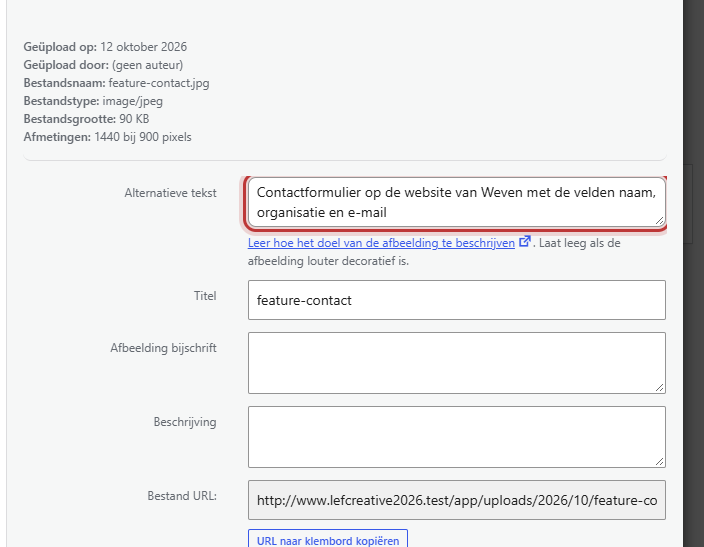
Good to know: the blocks Image, Gallery, Image slider and Before & after slider retrieve the alt text each time from the media library. If you change it, it will be updated everywhere that photo appears in a block.
Good and bad examples
| Bad | Good |
|---|---|
| IMG_4821 | New oak kitchen with cooking island in a house in Dokkum |
| image of a team | Four office employees at the front door |
| cheap website creation website Friesland web design | A laptop with the new website of a bakery |
| logo | Logo of Bakery Dijkstra |
Follow these rules:
- Describe what is visible, in one sentence of a maximum of about 125 characters.
- Do not start with “image of” or “photo of”: a screen reader already says that.
- Use a keyword only if it fits. A row of keywords is spam.
- If there is text in the image (for example on a flyer)? Include that text.
- A purely decorative image, such as a pattern or line, may have an empty alt text.
Title and caption: what is the difference?
In Attachment details there are also Title, Caption and Description.
- Title: the name in the media library. Useful for finding the photo again. In a gallery with captions, it will also appear (see below).
- Caption and Description: are not displayed by the blocks of your website. A caption under a photo is placed in the block Image under Image description, see placing an image with caption or link.
Alt text in the lightbox of the gallery
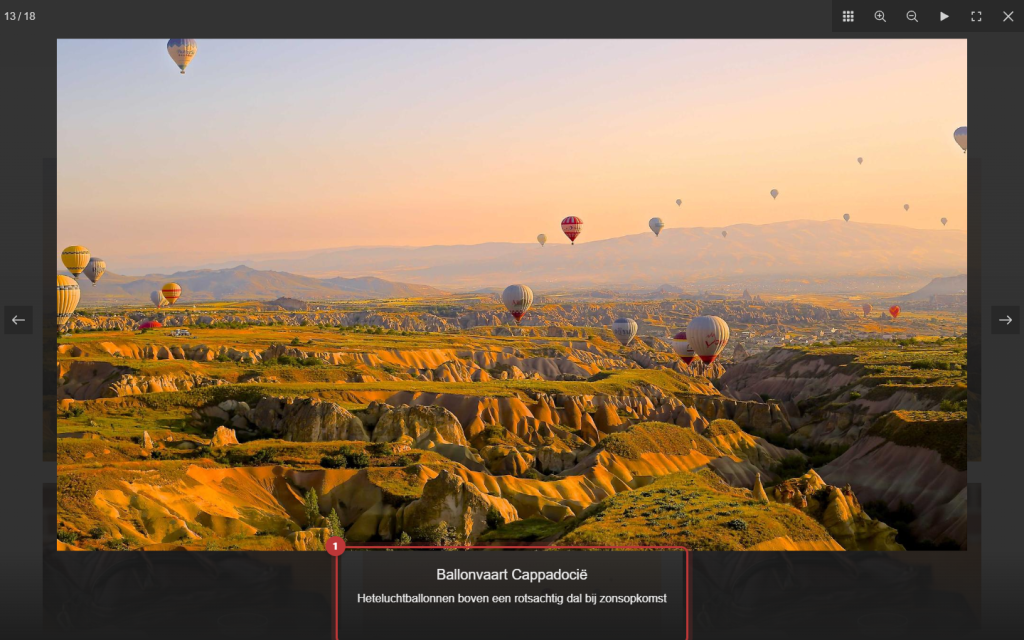
If you enable the option Show title and captions in the block Gallery, the enlarged photo (the lightbox) will display the Title and the Alternative text below the photo. Your alt text will then be visible. Write it as a proper sentence in that case. You can read how to set up the gallery in creating a photo gallery.
Note: if you choose a photo as background of a section, the section retains the alt text that the photo had at that moment. If you later change the alt text in the media library, it will not change for the background. Choose the photo again in the section.
Having trouble?
- I do not see the Alternative text field. Click on the photo in the media library first. In the list view, click on the name of the photo.
- My adjustment is not visible on a background photo. Choose the photo again in the section, see the warning above.
- There is a strange text under the photo in the lightbox. That is the Title or Alternative text from the media library. Adjust them there, or turn off Show title and captions.
- I have hundreds of photos without alt text. Start with the photos on your most important pages. Do you want us to help? Contact us.
Frequently asked questions
Every image with content does. Purely decorative images, such as a pattern or a line, may remain empty.
Share this article
Robert Oosterloo
Robert Oosterloo is eigenaar en UX/UI-designer van Lef Creative in Kollum. Hij ontwerpt websites, webshops en software voor ondernemers in Noord-Nederland.
Read also
Setting up a slider
A video as a background
A photo as the background of a section






Want a website like this?
Here you can read how easy it is to maintain a leflite site yourself. Want one too? We will think along with you, no strings attached.
Prefer direct contact? Call Robert at 06 35 66 47 73 or send a WhatsApp.