
How do I write and publish a blog post?

Robert Oosterloo
Updated on · 4 min read
News, tips, or a recap of a project: you can post a blog article under Posts. With a good image, summary, and category, the article will automatically appear neatly in your overviews.
In short
- Go to Posts → Add New Post.
- Write a title and build the content with sections and blocks.
- Choose a Featured Image on the right and write a Summary.
- Select a category, fill in Yoast, and publish or schedule.
- Comments are disabled in leflite.
Step 1: Create a new post
Go to the menu on the left and select Posts → Add New Post. Unsure if something should be a post or a page? Read the difference between a page and a post.
Step 2: Title and content
Type the title at the top. Make it specific: “5 tips for a garden that looks great all year round” works better than “Garden tips”.
Build the content just like on a page: a section, a column, and blocks like Text and Image. Use subheadings, short paragraphs, and where possible, a list in your text. It reads better on a phone.
Nog geen website op leflite?
Wij bouwen hem samen met jou. Daarna pas je alles zelf aan, precies zoals in dit artikel.
- Online binnen een week
- Hosting, SSL en back-ups inbegrepen
- Vanaf €49,95 per maand

Step 3: Featured Image
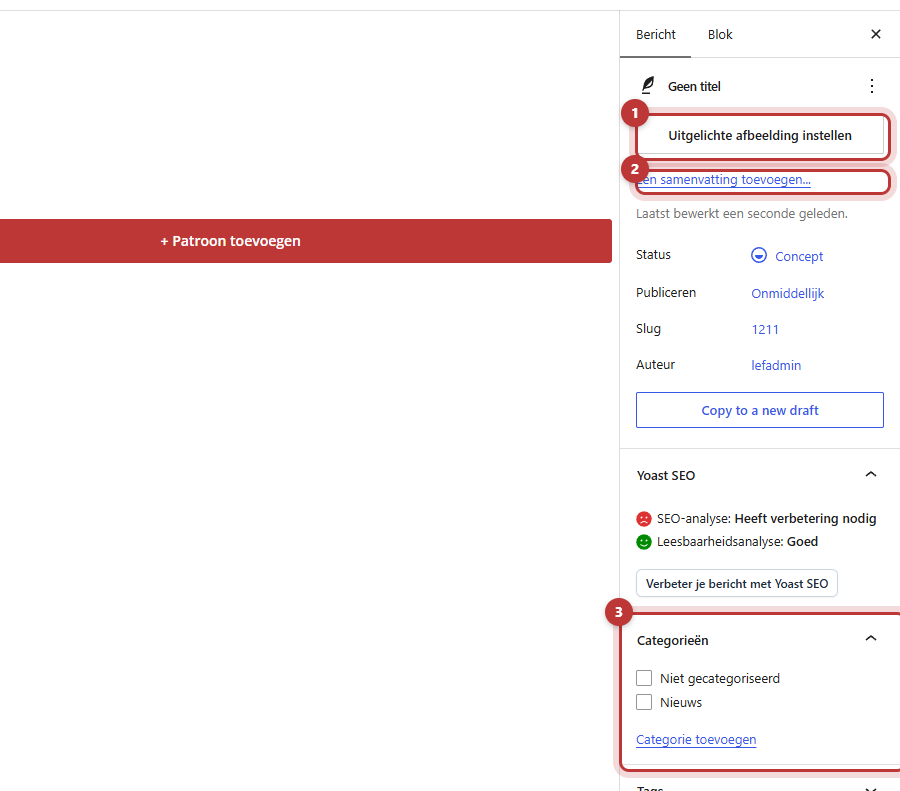
Open the post settings on the right and click on Featured Image to Set Featured Image. Choose a photo from the media library or upload a new one. This image will appear on the card in your overviews and will be used when someone shares your post. Use a landscape photo and fill in a good alt text.
Step 4: Summary
Write one or two sentences about what the post is about under Summary. This text will appear on the card in your overview. About thirty words fit on a card; a longer summary will be cut off. If you leave it blank, WordPress will create something from your text, and that is not always pretty.
Step 5: Category and tags
Select the Categories that the post belongs to, such as “News” or “Tips”. Stick to a few fixed categories; do not create a new one for each post. Tags are optional and usually not necessary.
Categories as filter buttons
With the block Highlight Taxonomy Terms, you can display your categories as buttons above your overview. Visitors can then click on “Tips” and only see those posts. Think of categories as buttons, links, or cards displaying.
Step 6: SEO (Yoast)
Below the content is the Yoast SEO block. Fill in a focus keyword, an SEO title, and a meta description. How to write those is explained in writing a good page title and meta description.
Step 7: Publish or Schedule
Click on Publish to put the post online immediately. Do you want it to appear later? Click on the publication date on the right at Immediately, choose a date and time, and click on Schedule. The post will then automatically go online at that time.
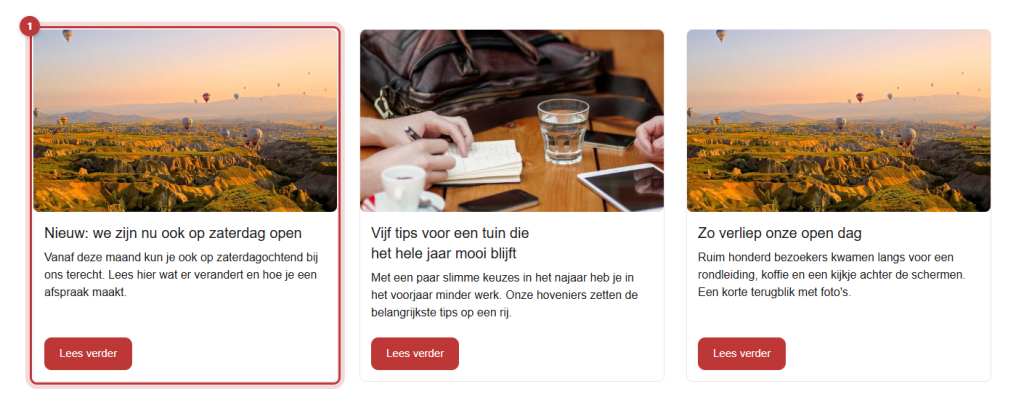
After publishing, the post will automatically appear in your overviews: on your posts page and in any Highlights block that shows posts. A post card displays the featured image, the date, the title, and the summary. See show your latest posts with Highlights.
Comments
Comments are disabled in leflite. Visitors cannot comment on your posts. This way, you won’t have to deal with spam and you don’t need to moderate anything. Do you still want to receive comments? Add a button to your contact page at the bottom of your post.
Tip: write shorter posts more often instead of occasionally writing one long post. And link from your post to a relevant service page: this way, each post also helps your most important pages.
Having trouble?
- The post is not in the overview. Is it published and not scheduled? Is the Highlight block filtering on a different category?
- The card has no image. Set a Featured Image.
- The text on the card is strange or empty. Fill in the Summary.
- You don’t see the date on the card. The date appears on the post cards in the overview; it may be different with a custom card template. Ask us.
Can’t figure it out? Contact us or call 06 35 66 47 73. We are happy to help.
Frequently Asked Questions
No, comments are disabled in leflite. This way, you won’t have to deal with spam.
Share this article
Robert Oosterloo
Robert Oosterloo is eigenaar en UX/UI-designer van Lef Creative in Kollum. Hij ontwerpt websites, webshops en software voor ondernemers in Noord-Nederland.
Read also
Automatically display posts or pages
Placing a quote
Display categories as buttons or cards






Want a website like this?
Here you can read how easy it is to maintain a leflite site yourself. Want one too? We will think along with you, no strings attached.
Prefer direct contact? Call Robert at 06 35 66 47 73 or send a WhatsApp.