
How do I give a section a background color?

Robert Oosterloo
Updated on · 4 min read
A section with a different background color stands out and brings calm to a long page. In leflite, you choose that color from your brand style, and the text color adjusts automatically. In this article, you will read how it works.
In short
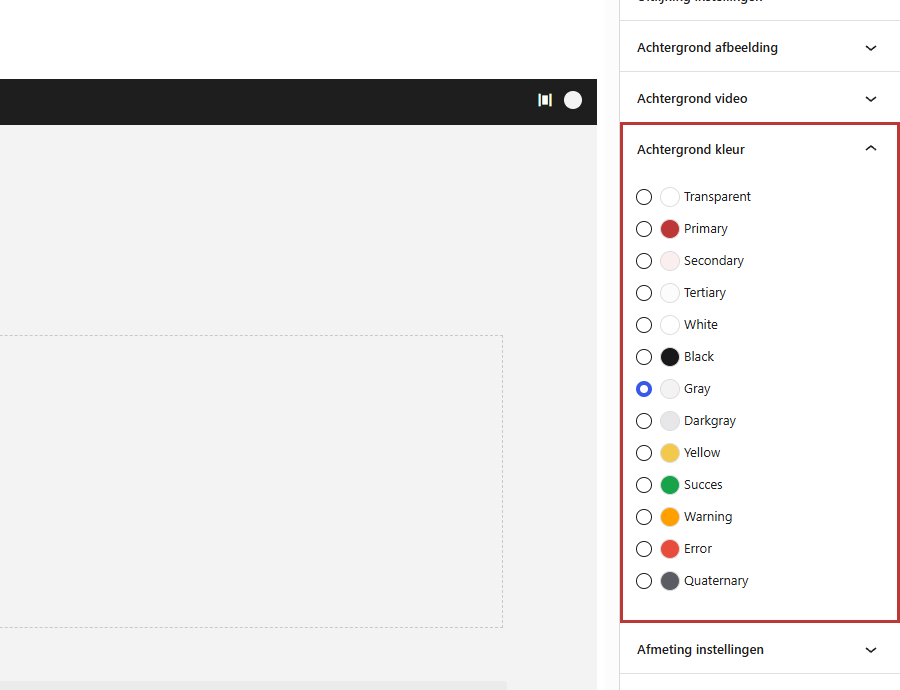
- Select the section and open the panel on the right Background color.
- Click on a circle: the colors come from your brand style, such as Primary, White, and Black.
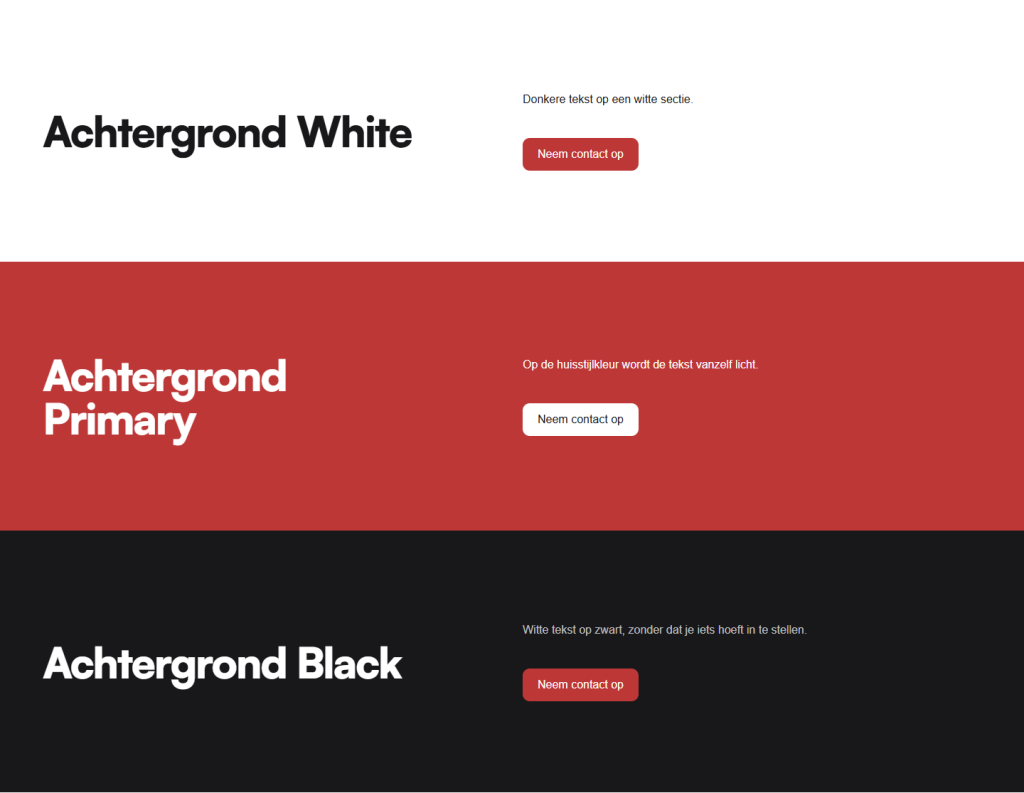
- The text color changes automatically: white on dark, dark on light.
- You cannot add a custom color yourself; we handle that in the brand style.
Nog geen website op leflite?
Wij bouwen hem samen met jou. Daarna pas je alles zelf aan, precies zoals in dit artikel.
- Online binnen een week
- Hosting, SSL en back-ups inbegrepen
- Vanaf €49,95 per maand

Step 1: Select the section
Click on the edge of the section in the editor, or open the List view at the top left and click on Section. If you accidentally click on a block or column, you will see different settings on the right.
Step 2: Open Background color
On the right sidebar, the panel Background color is displayed. Click on the title to expand it.
Step 3: Choose a color
Click on the circle of the color you want. In the editor, you will immediately see the section in that color. Save the page with Update or Save as draft. A new section is white by default.
Why does the text color change too?
Every color in your brand style has a fixed text color that goes with it. On a black or dark section, the text will be white, and on a white section, it will be dark. This way, your text remains readable without having to choose a color for each text. This also applies to headings and links in the section.
Therefore, you cannot set the text color independently for each section. Do you want white text? Then choose a dark background color.
What colors can I choose?
You will see the colors from your own brand style, with their English names. In most websites, these include:
- Primary: your main color.
- Secondary and Tertiary: your second and third colors.
- White, Black, Gray, and Dark gray: neutral colors.
- Transparent: no custom color.
- Yellow, Success, Warning, and Error: signal colors intended for notifications. It is better not to use them as section colors.
The exact color behind each name varies by website. You can read more about your brand style in colors and fonts of your website.
Two sections with the same color stacked on top of each other
Each section has space above and below. If you stack two sections with the same color, you double the space and create a large gap. Two solutions:
- Place the content in one section, possibly with a column of 12 as a subheading.
- Reduce the space at the top of the bottom section. You can do this in Size settings; see adjusting the height and space of a section.
If you alternate your colors, for example white and light gray, you won’t have this problem.
Tip: if you place a photo behind a section, still choose a background color. The color will be used for the overlay over the photo and determines the text color. Read a photo as a background for a section.
Not working?
- You do not see the Background color panel: you have selected a column or block instead of the section. Choose the section in the list view.
- The color does not change on your site: have you saved the page? Then refresh the page on your site with Ctrl+F5.
- The text is poorly readable: choose a color with more contrast, such as Black or Primary instead of a light color.
- A column has a different color than the section: that column is a card with its own color. See a column as a card.
- The color you are looking for is not listed: please contact us.
Frequently Asked Questions
Not by yourself. Colors come from your brand style; ask us to add a color.
Share this article
Robert Oosterloo
Robert Oosterloo is eigenaar en UX/UI-designer van Lef Creative in Kollum. Hij ontwerpt websites, webshops en software voor ondernemers in Noord-Nederland.
Read also
More space between blocks
Tabs with Section tabs
Automatically display subpages as tiles






Want a website like this?
Here you can read how easy it is to maintain a leflite site yourself. Want one too? We will think along with you, no strings attached.
Prefer direct contact? Call Robert at 06 35 66 47 73 or send a WhatsApp.