
How do I adjust an overview page (archive)?

Robert Oosterloo
Updated on · 4 min read
An overview page, such as the list of all your blog posts or frequently asked questions, is automatically populated. Therefore, you cannot edit it like a regular page. However, you can add sections above and below it using builders. Here’s how.
In short
- An overview page is called an archive in WordPress.
- For each content type, there is a submenu Archive settings with Builders at the top of the archive page and Builders at the bottom of the archive page.
- For your blog, select a Blog archive outro builder on the posts page.
- Always use a builder for new text: the field Archive SEO (outro) will be removed.
What is an archive?
An archive is a page that WordPress builds itself from your content: all posts, all frequently asked questions, all products, or everything in one category. You do not write text in it; the list is generated automatically. To add an intro, a call to action, or a contact block, you use builders. What a builder is, you can read in what are builders and patterns.
Archive settings per content type
Does your website have its own content types with an overview, such as frequently asked questions, projects, or job listings? Then under that section in the left menu, there is a submenu Archive settings …, for example, Archive settings faq. There you will find these fields:
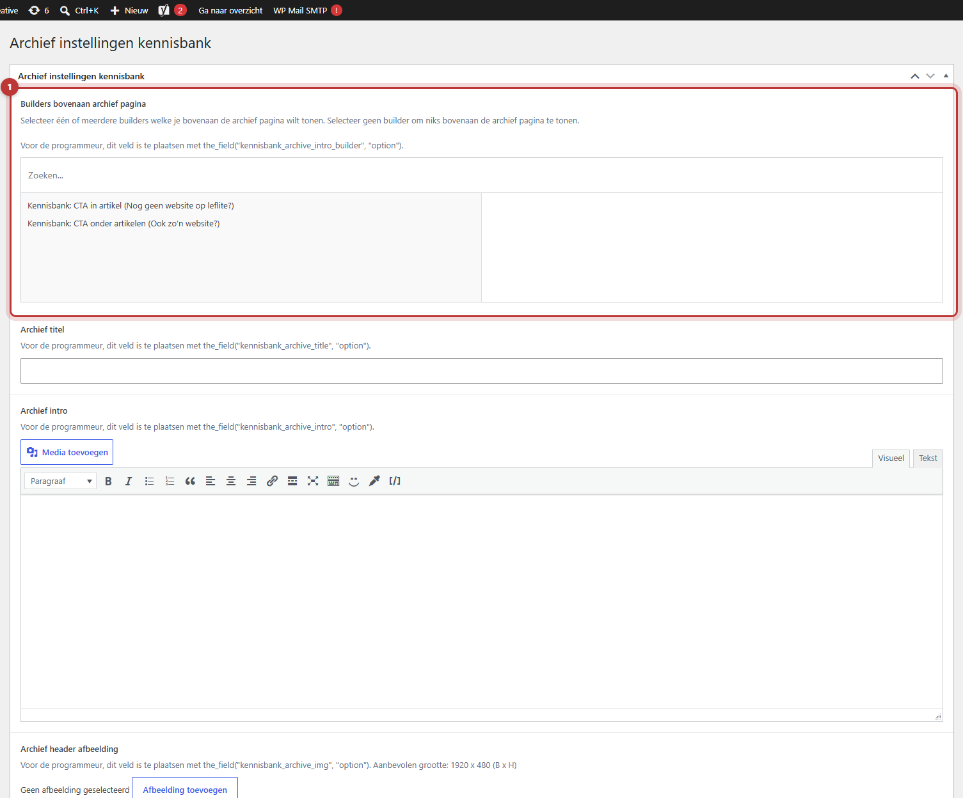
Builders at the top of the archive page
Choose one or more builders to appear above the list, such as an intro with a heading and a brief explanation. If you choose nothing, then nothing will appear above the list.
Builders at the bottom of the archive page
Choose builders that will appear below the list, such as a contact block or a call to action. Again, if nothing is chosen, nothing will be displayed.
Archive title, Archive intro, and Archive header image
These fields are intended for a fixed heading above the overview, with a header photo recommended to be 1920 x 480 pixels. Your website uses them by default only on the shop page of a webshop. On other overviews, they are only displayed if your website is set up for that. It is better to use Builders at the top of the archive page.
Archive SEO (outro): will be removed
Do you still see the field Archive SEO (outro)? That field will be removed. The explanation is: “As soon as you leave this field empty and save, it will disappear.” Place the text in a builder and select it under Builders at the bottom of the archive page.
After choosing, click Update.
Nog geen website op leflite?
Wij bouwen hem samen met jou. Daarna pas je alles zelf aan, precies zoals in dit artikel.
- Online binnen een week
- Hosting, SSL en back-ups inbegrepen
- Vanaf €49,95 per maand

The blog overview: Blog archive outro builder
Your blog posts do not have Archive settings. The blog overview is the page selected as Settings → Reading under Posts page. Open that page in the editor. Below the editor is the field Blog archive outro builder: “If you want to display a builder at the bottom of the blog archive page, select the relevant builder here.” Choose the builder and click Update.
Good to know: the text you type in the editor of the posts page itself will not be displayed: WordPress shows the list of posts on that page. Use the outro builder for additional content. How to further configure the blog overview can be read in setting up your post overview.
Category pages in your webshop
Do you have a webshop? A product category has its own fields for text and quick links. See quick category links and text on a category page.
Do you want a section on every page, including overviews? Then use the general builder above the footer.
Not working?
- I do not see Archive settings in my blog. Correct: for blog posts, you use the Blog archive outro builder on the posts page.
- I do not see the Blog archive outro builder field. No Posts page has been selected under Settings → Reading, or you have another page open.
- My Archive title or intro is not on the overview. Those fields are only displayed by default on the shop page. Use a builder at the top.
- My builder is not in the list. First publish the builder.
- I do not see the builder on the overview. Click Update and refresh the page. With caching, it sometimes takes a while.
Can’t figure it out? Contact us.
Share this article
Robert Oosterloo
Robert Oosterloo is eigenaar en UX/UI-designer van Lef Creative in Kollum. Hij ontwerpt websites, webshops en software voor ondernemers in Noord-Nederland.
Read also
Builders and patterns explained
Adjusting or unlinking a synced pattern
Creating a template from a section






Want a website like this?
Here you can read how easy it is to maintain a leflite site yourself. Want one too? We will think along with you, no strings attached.
Prefer direct contact? Call Robert at 06 35 66 47 73 or send a WhatsApp.