
How do I set up my posts overview?

Robert Oosterloo
Updated on · 3 min read
All your messages are displayed together on an overview page, your blog or news page. You choose which page that is, how visitors navigate further, and what appears next to and below the overview.
In short
- Choose your blog page under Settings → Reading at Posts page.
- Pagination or a Load more button: General options → Filter.
- You fill a sidebar with widgets in Post archive sidebar.
- Below the overview, you place a builder with Blog archive outro builder.
- Or create your own page with the block Highlight.
Two ways
You have two ways to display your posts:
- The posts page. WordPress automatically creates a blog overview from one page, with all posts, newest first. You set that below.
- A custom page with Highlight. You build a regular page with sections and place the block Highlight in, set to posts. Enable Apply pagination if there are many posts. This gives you more freedom in formatting. See show latest posts with Highlight.
Choosing the posts page
- Create a blank page, for example “Blog” or “News”, and publish it.
- Go to Settings → Reading.
- Choose at Your homepage displays the option A static page (if it isn’t already set).
- Choose your page “Blog” at Posts page.
- Click Save Changes.
All your posts will now appear on that page. What you place in the editor of that page will not be shown: the posts take the space.
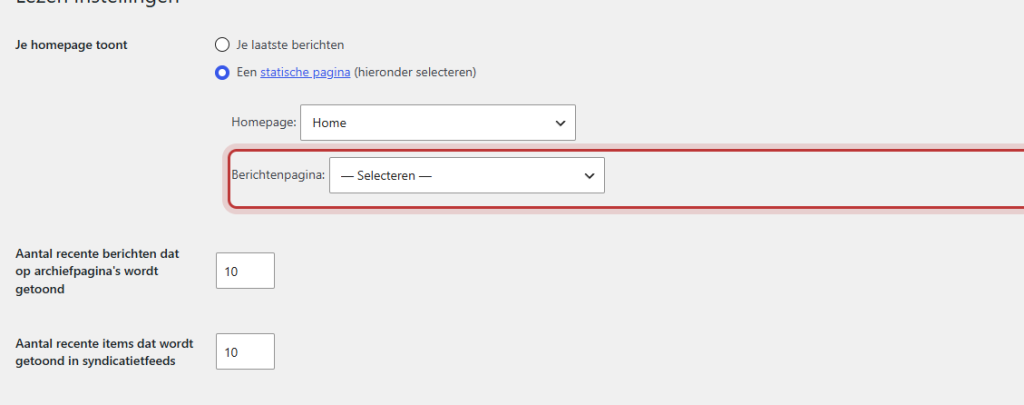
Note: do not change the posts page casually if your website has been online for a while. The address of your blog will change, and old links will no longer work. See set up a redirect.
Nog geen website op leflite?
Wij bouwen hem samen met jou. Daarna pas je alles zelf aan, precies zoals in dit artikel.
- Online binnen een week
- Hosting, SSL en back-ups inbegrepen
- Vanaf €49,95 per maand

Pagination or a Load more button
If you have many posts, they will be spread over multiple pages. You choose how visitors navigate further:
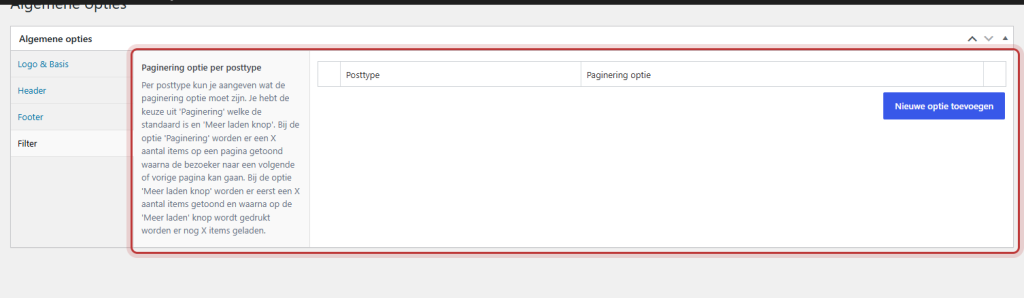
- Go to General options and open the tab Filter.
- Click on Pagination option per post type and click Add new option.
- Choose Post type the option Post.
- Choose at Pagination option: Pagination (page numbers at the bottom, the default) or Load more button (a button that loads the next posts below the current ones).
- Click Update.
You set how many posts appear at a time under Settings → Reading.
A sidebar
Next to the overview, there can be a sidebar with, for example, your categories, a search field, or your latest posts. You fill that under Widgets, in the widget area Post archive sidebar. If you leave that area empty, there will be no sidebar. See filling the footer or a sidebar with widgets.
A builder below the overview
Below your posts, you can place a fixed section, such as a newsletter block or a contact section. You first create that section as a builder (see what builders and patterns are). Then open your posts page in the editor; there you will find the field Blog archive outro builder: “If you want to display a builder at the bottom of the blog archive page, select the corresponding builder here.” Choose your builder and click Update.
Tip: also check your overview on your phone. A Load more button is often more convenient than small page numbers.
Having trouble?
- Your posts page does not show your own text. That’s correct: on the posts page, the posts take the space. Use the outro builder or create your own page with Highlight.
- The Load more button does not appear. There may be fewer posts than fit on one page. Or the option is set for a different post type than Post.
- The sidebar is empty or missing. Place widgets in Post archive sidebar.
- The field Blog archive outro builder is not there. It only appears on the page selected as Posts page in Settings → Reading.
Can’t figure it out? Contact us or call 06 35 66 47 73. We are happy to help.
Share this article
Robert Oosterloo
Robert Oosterloo is eigenaar en UX/UI-designer van Lef Creative in Kollum. Hij ontwerpt websites, webshops en software voor ondernemers in Noord-Nederland.
Read also
Automatically display posts or pages
Placing a quote
Display categories as buttons or cards






Want a website like this?
Here you can read how easy it is to maintain a leflite site yourself. Want one too? We will think along with you, no strings attached.
Prefer direct contact? Call Robert at 06 35 66 47 73 or send a WhatsApp.