
How do I use headings (H1, H2, H3) correctly?

Robert Oosterloo
Updated on · 4 min read
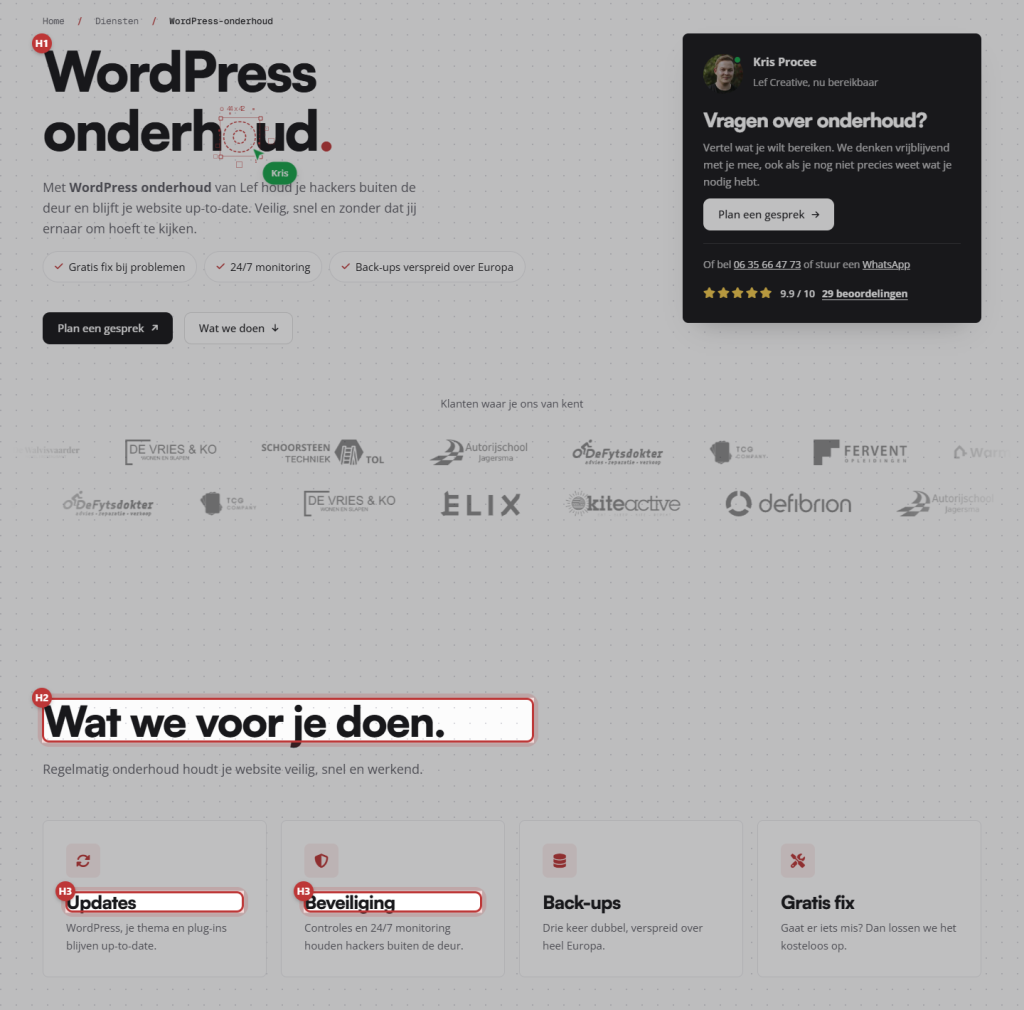
Headings make a page scannable. Visitors jump to the section they are looking for, and Google uses them to understand what your page is about. The rule is simple: one Heading 1, followed by Heading 2’s, and Heading 3’s where necessary. In this article, you will read how to do this in leflite.
In short
- Every page has exactly one Heading 1: the title at the top.
- Chapters get a Heading 2, and parts of that get a Heading 3.
- In leflite, you set the Heading 1 yourself, in the first section of the page.
- Choose a heading based on meaning, not size.
Why headings matter
- For your visitor: no one reads a webpage from top to bottom. People scan the headings and read the section they need.
- For Google: the headings indicate what the main point is and what the components are.
- For accessibility: people using a screen reader jump from heading to heading. A logical order makes your site usable for them.
The rule: one H1, then H2, then H3
Think of your page as a book. The Heading 1 (H1) is the title of the book: there is only one. The Heading 2‘s (H2) are the chapters. A Heading 3 (H3) is a paragraph within a chapter. Do not skip any level: an H3 belongs under an H2, not directly under the H1.
Nog geen website op leflite?
Wij bouwen hem samen met jou. Daarna pas je alles zelf aan, precies zoals in dit artikel.
- Online binnen een week
- Hosting, SSL en back-ups inbegrepen
- Vanaf €49,95 per maand

Where does the H1 come from in leflite?
In many WordPress themes, the page title automatically becomes the H1. In leflite, it does not: you build the top of the page yourself with sections. Therefore, place the main heading of the page in the first section, in a Text block, and choose Heading 1 for that. Do not use Heading 1 anywhere else on the page.
This also applies to blog posts: start the post with a Heading 1. An exception is the webshop. On a product page, the product name is automatically the H1, and on the shop and category pages, the H1 comes from the header you set at the top of the shop page. Therefore, do not place a second Heading 1 in your own text there.
Step 1: Choose a heading in the Text block
- Click in the Text block on the line that should become a heading.
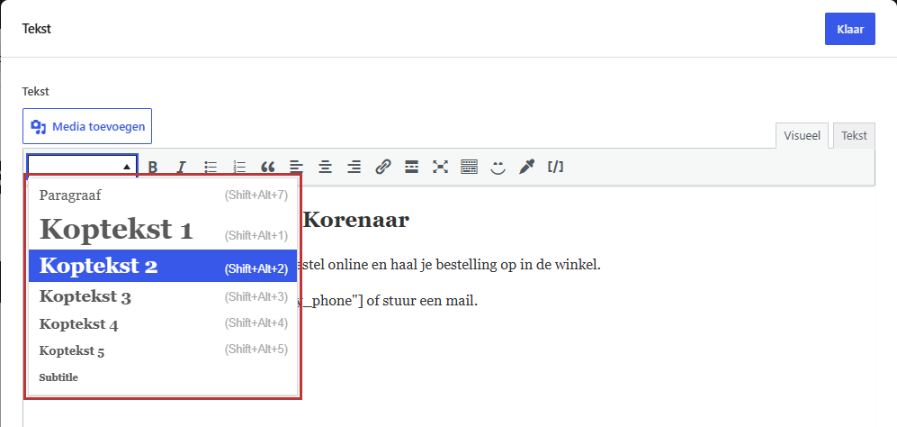
- Open the toolbar’s dropdown menu that shows Paragraph by default.
- Choose Heading 1 through Heading 5, or Subtitle.
Read more about the Text block in using the Text block.
The Subtitle
In the dropdown menu, there is also Subtitle. Technically, this is a Heading 6: a small heading. Do not use it as a top heading above your actual heading, like a small word “Services” above “What we do for you”. For Google, that small heading then comes before your real heading, and it adds nothing. Instead, place such text in the heading itself, or leave it out.
Choose a heading based on meaning, not size
Do you find a Heading 2 too large? Then do not choose a Heading 4 just because it is smaller. The level indicates something about the structure, the size is formatting. If the size does not fit your design, ask us; we will adjust it in the corporate identity. And do not turn a regular sentence into a heading by making it bold or large: use the actual heading level instead.
Tip: Read only your headings, from top to bottom. Do you understand what the page is about? Then your structure is good. Use the topic of the page in one or two H2’s; the Yoast analysis will help you with that, see using the Yoast analysis. More about findability: everything about SEO.
Not working?
- Your page has no H1. Place the main heading as Heading 1 in the first section. Without an H1, Google knows less about what the page is about.
- There are two H1’s on the page. Make the second one a Heading 2. On a product page, the theme already creates the H1.
- The heading looks different from other pages. Perhaps you also made the text bold or larger. Select the heading and remove the extra formatting.
Can’t figure it out? Contact us, call 06 35 66 47 73 or email to info@lefcreative.nl.
Share this article
Robert Oosterloo
Robert Oosterloo is eigenaar en UX/UI-designer van Lef Creative in Kollum. Hij ontwerpt websites, webshops en software voor ondernemers in Noord-Nederland.
Read also
Using the Text block
Display a breadcrumb trail
Share buttons for social media






Want a website like this?
Here you can read how easy it is to maintain a leflite site yourself. Want one too? We will think along with you, no strings attached.
Prefer direct contact? Call Robert at 06 35 66 47 73 or send a WhatsApp.