
How do I place a large icon (and find the right icon)?

Robert Oosterloo
Updated on · 3 min read
An icon above a service or benefit shows at a glance what it is about. With the block Icon, you place a large icon in a column and choose the size, color, and alignment yourself. You can choose from over a thousand icons.
In short
- Add the block Icon to a column above your text.
- Search for an English name in Icon, such as ‘phone’ or ‘rocket’.
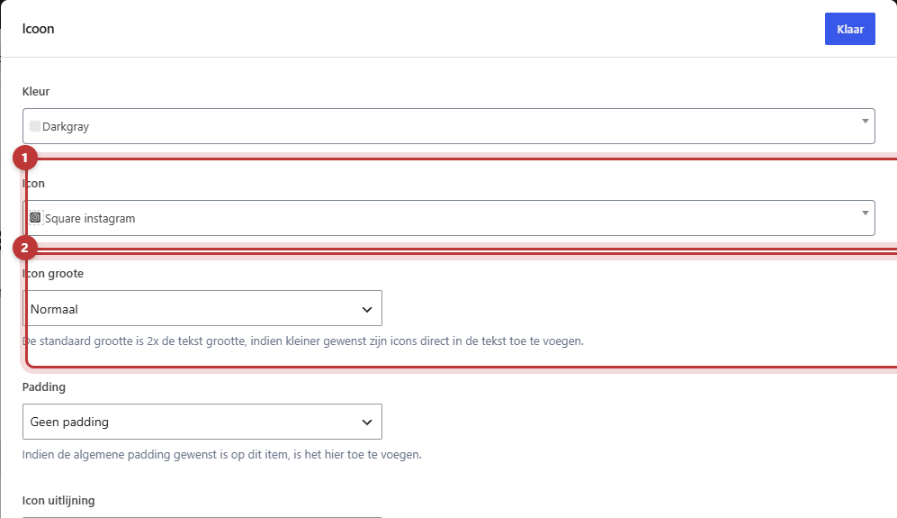
- Choose the size of the icon in Icon size.
- Select a color from your brand style in Color.
- In Icon alignment, you can place the icon left, center, or right.
Step 1: Add the Icon block
Click on the + (Add block) in the column, type ‘icon’, and select Icon. The editing window will open. Place the block above the text it belongs to. If it’s below, move it up with the arrow in the toolbar.
Step 2: Search and choose an icon
Click on the dropdown Icon and type a keyword. You will see each icon with its name. Click on the icon you want to use.
Nog geen website op leflite?
Wij bouwen hem samen met jou. Daarna pas je alles zelf aan, precies zoals in dit artikel.
- Online binnen een week
- Hosting, SSL en back-ups inbegrepen
- Vanaf €49,95 per maand

Search tips
The icons have English names. A few examples:
| You search for | Type |
|---|---|
| phone | phone |
| envelope | |
| location | location-dot |
| checkmark | check |
| clock or time | clock |
| idea | lightbulb |
| shopping cart | cart |
| person | user |
Can’t find anything? Try a synonym or part of the word. For example, search for ‘cart’ for all shopping carts.
Step 3: Choose the size
In Icon size, you have five choices: Normal, Medium (x3), Large (x4), ExtraLarge (x5), and ExtraExtraLarge (x6). Normal is twice the size of the text. You cannot place a smaller icon with this block, but directly in the text. See using the Text block.
Step 4: Choose a color
In Color, choose a color from your brand style. Use Primary, Secondary, white, or black for an icon. If you leave the color empty, the icon will take the color of the text.
Step 5: Space and alignment
In Padding, you give the icon extra space: No padding, Padding all around, Horizontal padding (left and right), or Vertical padding (top and bottom). Usually, No padding is fine.
In Icon alignment, choose Left, Center, or Right. If your text is centered below, place the icon in the center as well.

Example: three services with icons
- Create a section with three columns. See adding a section and dividing into columns.
- In the first column, place an Icon block (Large, Center) and below it a Text block with a Heading 3 and a short sentence, also centered.
- Finish the column completely and duplicate it twice.
- Adjust the icon and text in the copies.
This way, the three columns have exactly the same structure and size.
Tip: choose icons from the same style and give them all the same size and color. This way, a row of icons will look cohesive. If you want icons for each line of a list, use the List block. See a list with icons.
Not working?
- Can’t find your icon. Search in English, for example, ‘phone’ instead of ‘telefoon’.
- The icon does not have the color you chose. Choose Primary, Secondary, white, or black. Want a different color? Contact us.
- You want a circle or square behind the icon. That is not possible with this block. Contact us if you want that for your entire site.
- The icon is not centered above the text. Set both Icon alignment and the text to Center.
- The icon is too small. Choose a larger size in Icon size.
You can find all other blocks in all blocks in a row.
Frequently asked questions
Search in English, for example, ‘phone’ instead of ‘telefoon’. Also try a synonym.
Share this article
Robert Oosterloo
Robert Oosterloo is eigenaar en UX/UI-designer van Lef Creative in Kollum. Hij ontwerpt websites, webshops en software voor ondernemers in Noord-Nederland.
Read also
Automatically display posts or pages
Setting up a slider
Using the Text block






Want a website like this?
Here you can read how easy it is to maintain a leflite site yourself. Want one too? We will think along with you, no strings attached.
Prefer direct contact? Call Robert at 06 35 66 47 73 or send a WhatsApp.