
How do I create a menu with dishes and prices?

Robert Oosterloo
Updated on · 4 min read
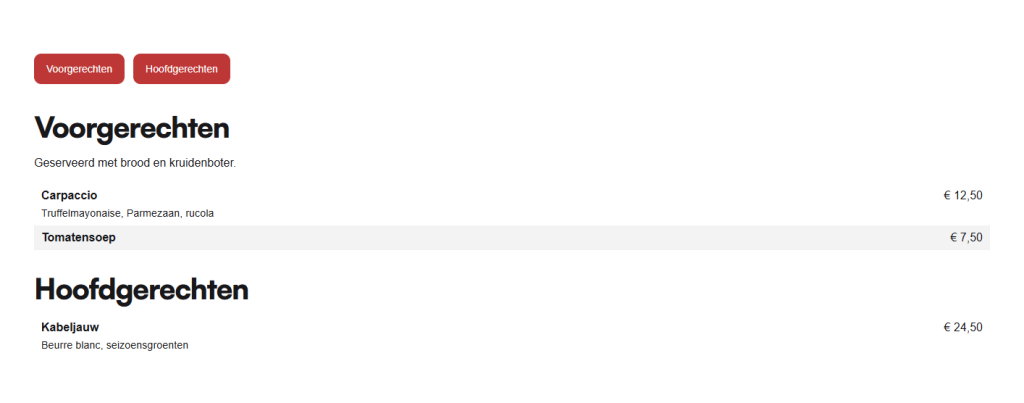
A menu as actual text on your website is more readable than a PDF, even on a phone, and Google can read it. With the block Restaurant menu, you can put your menu online, divided into categories such as appetizers and main courses. At the top, buttons will automatically appear to jump to a category.
In short
- Add the block Restaurant menu in a column.
- Create a Category for each part of your menu, optionally with a Category description.
- Add Dishes for each category with Name, Price, and an addition.
- The price is free text: type the euro sign yourself.
- At the top of the block, there is a button for each category that jumps to that category.
Nog geen website op leflite?
Wij bouwen hem samen met jou. Daarna pas je alles zelf aan, precies zoals in dit artikel.
- Online binnen een week
- Hosting, SSL en back-ups inbegrepen
- Vanaf €49,95 per maand

Step 1: Add the Restaurant menu block
Click on the + (Add block) in a column, type ‘menu’, and choose Restaurant menu. Place it in a wide column so that the prices align neatly to the right. The editing window will open with an empty list Menu.
Step 2: Create a category
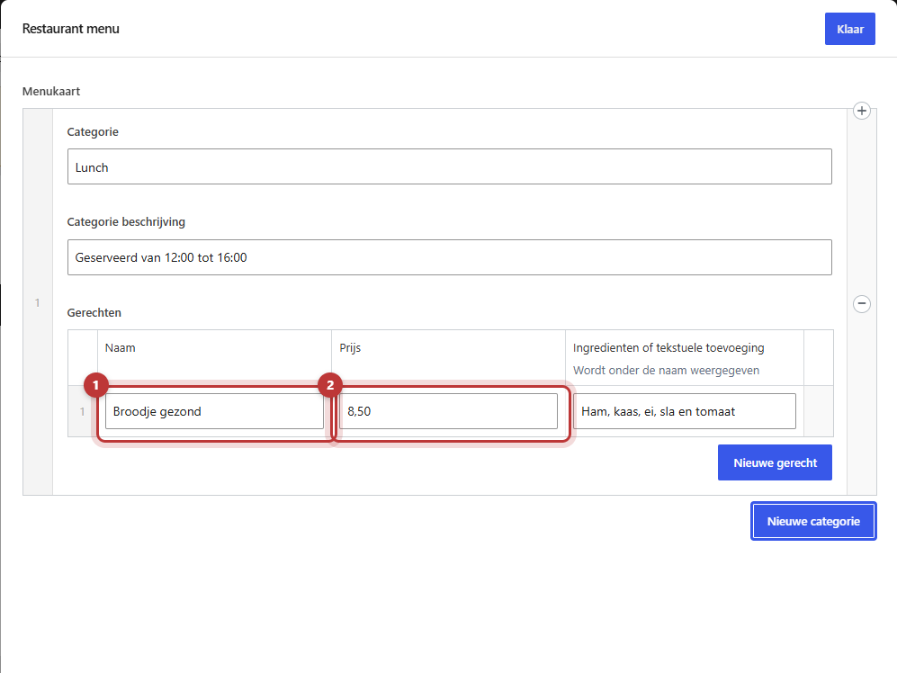
Click on New category. Fill in:
- Category: the name of the section, for example, ‘Appetizers’. This name will appear as a heading above the dishes and on the button at the top.
- Category description (optional): a short sentence under the heading, such as ‘Served with bread and herb butter’.
Step 3: Add dishes
Within the category, the list Dishes is displayed. Click on New dish for each dish.
Name, Price, and addition
- Name: the name of the dish. It appears bold on the menu.
- Price: the price as you want to display it, for example, ‘€ 12.50’. This is regular text, so type the euro sign yourself. You can also write ‘daily price’ or ‘from € 9.50’.
- Ingredients or textual addition (optional): displayed under the name, for example, the ingredients or ‘also vegetarian’.
Repeat this for each category. Click on Done and then on Save.
The buttons at the top
At the top of the block, there is a small button for each category. A click jumps to that category. The web address of such a category is the name in lowercase letters with a # in front, for example, #appetizers. You can also use this in a button elsewhere on your site. Therefore, choose short category names without special characters. You can read more about jumping to a spot on the page in linking to a spot further down the page.
Multiple menus: per column or per section
Do you have a lunch and a dinner menu? Then you have two options:
- One block with all categories listed one below the other. Convenient for a short menu.
- Two sections, each with its own heading (‘Lunch’, ‘Dinner’) and its own Restaurant menu block. This is clearer for a long menu. Use different category names in each block so that the buttons at the top jump to the correct spot.
You can also create two columns side by side, each with a block. On a phone, they will appear one below the other.
Also for a price list
The block is not just for restaurants. A hairdresser, beauty salon, or bicycle repair shop can also create a price list with it: categories like ‘Haircuts’ or ‘Maintenance’, with treatments and prices. For a short list without categories, the block List with text left and right is more convenient. See creating a list with checkmarks or prices.
Tip: add your opening hours next to your menu, for example, in a column beside it. See displaying your opening hours.
Having trouble?
- A dish is listed without a price. The field Price is empty. Fill it in, or leave it intentionally blank for a daily suggestion.
- The euro sign is missing. Type it yourself in the Price field.
- A button at the top does not jump correctly. Does the category use special characters or is the same category name listed twice on the page? Choose a unique, simple name.
- You want to adjust the order. Drag a category or dish on the left to a different spot.
- Can’t figure it out? Contact us.
You can find all blocks in all blocks in a row.
Share this article
Robert Oosterloo
Robert Oosterloo is eigenaar en UX/UI-designer van Lef Creative in Kollum. Hij ontwerpt websites, webshops en software voor ondernemers in Noord-Nederland.
Read also
Automatically display posts or pages
Setting up a slider
Using the Text block






Want a website like this?
Here you can read how easy it is to maintain a leflite site yourself. Want one too? We will think along with you, no strings attached.
Prefer direct contact? Call Robert at 06 35 66 47 73 or send a WhatsApp.