
How do I automatically insert my phone number, address, or date into text?

Robert Oosterloo
Updated on · 5 min read
Your phone number, email address, and address appear in many places on your website. If you type them manually everywhere, you will always forget one when making a change. With the button Add theme option, you can insert them as a shortcode in your text. The website will always display the number you have entered in the settings.
In short
- You enter your details once at General options → Company details.
- In the Text block, click on Add theme option and choose a detail.
- In the editor, you will see a shortcode, while the actual detail appears on the website.
- Phone and email will automatically become clickable.
- You can also insert the date, your review score, and your opening hours this way.
Nog geen website op leflite?
Wij bouwen hem samen met jou. Daarna pas je alles zelf aan, precies zoals in dit artikel.
- Online binnen een week
- Hosting, SSL en back-ups inbegrepen
- Vanaf €49,95 per maand

Why not just type?
A shortcode is a short code enclosed in brackets, for example [theme_option field="company_phone"]. On the website, that code changes to your phone number. If you change the number in Company details, it will be updated immediately on every page where the code appears. You can read how to adjust the details yourself in change your phone number or address site-wide.
What do you need?
- Your details filled in at General options → Company details.
- A block Text (or another block with the same text field, such as Note / message or the text in an Accordion).
Step 1: Place your cursor in the Text block
Open the Text block with Edit or double-click. Place your cursor where the detail should go, for example after ‘Call us at’.
Step 2: Click on Add theme option
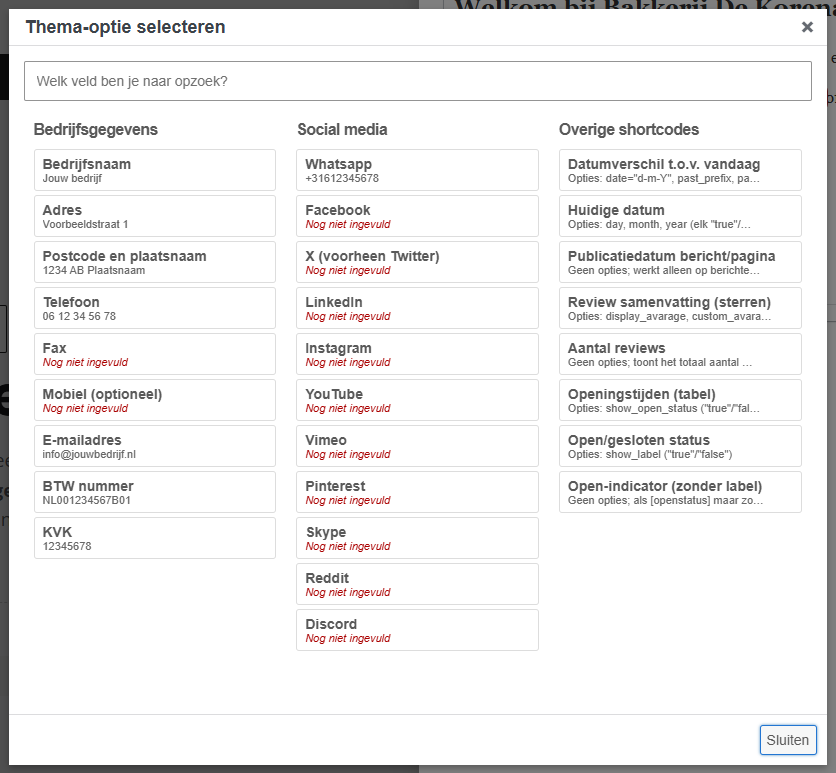
Click on the button Add theme option in the toolbar of the text field. The window Select theme option will open. At the top, there is a search field, below that the details grouped.
Step 3: Choose a detail
Click on the detail you want to insert. Under each name, you will see the value that is currently filled in, so you can be sure you are choosing the right one. You can also search, for example for ‘phone’ or ’email’. The code will appear at the location of your cursor.
Company details and social media
In Company details, you will find among others Company name, Address, Postal code and city name, Phone, Mobile (optional), Email address, VAT number, and Chamber of Commerce number. In Social media, you will find links to your profiles; these will appear on the website as an icon with a link. See also linking social media.
Other shortcodes: date, reviews, opening hours
At the bottom is the group Other shortcodes:
- Current date: today’s date, for example 12-10-2026.
- Publication date of post/page: the date on which the page or post was published.
- Date difference compared to today: how much time has passed between a date and today (see further down).
- Review summary (stars) and Number of reviews: your average score and the number of reviews. See showing reviews and your score.
- Opening hours (table), Open/closed status, and Open indicator (without label): only if you have enabled opening hours. See showing your opening hours.
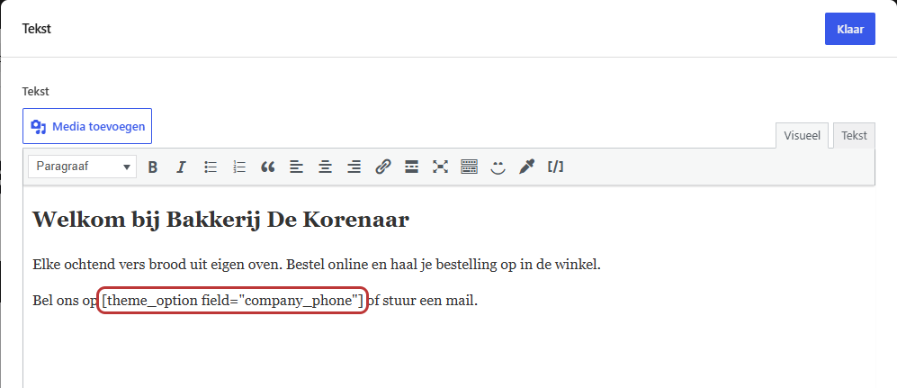
What do you see on the website?
On the website, the actual information is displayed in place of the code. A phone number becomes a link: if you tap it on your phone, you call directly. An email address becomes a mailto link, designed in such a way that spambots find it harder to pick up. An address or Chamber of Commerce number is shown as regular text.

Tip: if you want a different text as a link, such as ‘Call us’? Type that text between the two parts of the code: [theme_option field="company_phone"]Call us[/theme_option]. The link to your number will continue to work.
Calculating with dates: ‘for 15 years’
With Date difference compared to today, you let the website calculate how much time has passed since a date, or how long it will take. After inserting, there will be a code with today’s date: [date date="12-10-2026"]. Replace that date with your date, in the format day-month-year, for example the founding date of your company.
On the website, the difference will then be displayed in years, months, and days, for example ’15 years, 7 months, 11 days’. You can add text before or after with the options past_prefix and past_suffix (for a date in the past) or future_prefix and future_suffix (for a date in the future). If the date is incorrect, you will see a notification on the page as an administrator.
Note: not in button text
Do not place a phone or email code in the text of a button or menu item. The code already creates a link, and a link within a link does not work properly. Do you want a call button? Then use a link in the Buttons block as tel: followed by your number. See adding a button.
Having trouble?
- Nothing appears on the website in place of the code. The detail is empty. Fill it in at General options → Company details.
- You see the code literally on the website. Something has changed in the code, for example a quotation mark. Remove it and reinsert it with the button.
- The opening hours are not in the list. Opening hours are not enabled. See showing your opening hours.
- An old number is still on the site. It appears as plain text. Replace it with the code.
- Can’t figure it out? Contact us.
Frequently asked questions
Yes. If you adjust it in Company details, it will be updated immediately in every place where the code appears.
Share this article
Robert Oosterloo
Robert Oosterloo is eigenaar en UX/UI-designer van Lef Creative in Kollum. Hij ontwerpt websites, webshops en software voor ondernemers in Noord-Nederland.
Read also
Automatically display posts or pages
Setting up a slider
Using the Text block






Want a website like this?
Here you can read how easy it is to maintain a leflite site yourself. Want one too? We will think along with you, no strings attached.
Prefer direct contact? Call Robert at 06 35 66 47 73 or send a WhatsApp.