
How do I let visitors share a page on social media?

Robert Oosterloo
Updated on · 3 min read
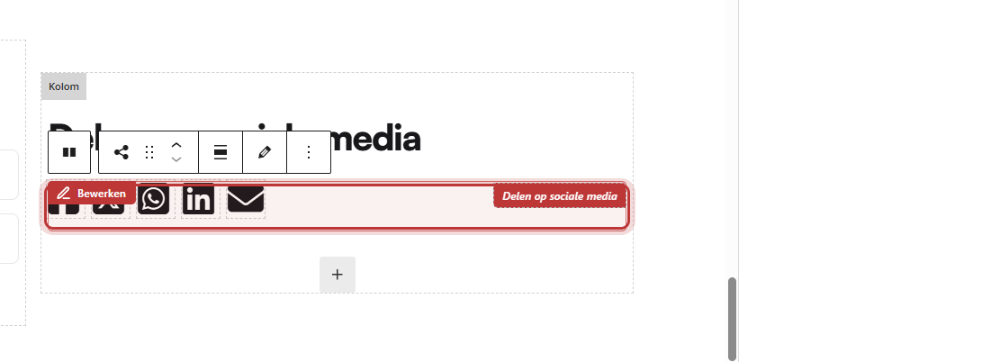
If a visitor finds your blog, promotion, or job vacancy interesting, they will gladly share it with others. With the block Share on social media, you can set up a row of share buttons on your page. The block has no settings: adding it is enough.
In short
- Add the block Share on social media in a column.
- You will get fixed buttons for Facebook, X, WhatsApp, LinkedIn, and email.
- The buttons always share the page they are on.
- You can set how the shared post looks in Yoast SEO.
- Links to your own profiles are slightly different: you set those in the company details.
Step 1: Add the Share on social media block
Click on the + (Add block) in a column, type ‘share’, and choose Share on social media. In the editing window, there is only an explanation, no fields. Click on Done and then on Save.
Which buttons do you see?
The block always shows five buttons: Facebook, X, WhatsApp, LinkedIn, and email. You cannot add or remove buttons. If a visitor clicks on a button, a window from that platform opens with the link to your page already filled in. For email, their mail program opens with the title and link of the page in the message.

Nog geen website op leflite?
Wij bouwen hem samen met jou. Daarna pas je alles zelf aan, precies zoals in dit artikel.
- Online binnen een week
- Hosting, SSL en back-ups inbegrepen
- Vanaf €49,95 per maand

Where do you place them?
Share buttons work best on pages that people like to forward:
- under a blog post or news article;
- at a job vacancy;
- at a promotion or event.
Place them at the end of the text, when the reader is finished. With a short sentence above, like ‘Do you know someone who might find this interesting?’, they are used more often. You usually don’t need them on your homepage or contact page.
Do you regularly write posts? Also read how to write and publish a blog post.
How does the shared post look?
If someone shares your page on Facebook or LinkedIn, that platform retrieves a title, a short text, and an image from your page. This information comes from Yoast SEO. For each page, you can choose a custom title, description, and image in the Yoast section Social display. If you don’t set anything there, Yoast will use your SEO title and meta description. You can read how to write those in a good page title and meta description.
⟦T0Tip: choose a custom image for pages that are often shared in Social display. A clear photo stands out more in a timeline than a logo.
Share buttons or links to your own profiles?
Share buttons share the page the visitor is on. If you want visitors to visit your Facebook or Instagram page instead, you need links to your own profiles. You fill those in once at General options → Company details, tab Social media. See link your social media to your website.
Is it not working?
- You want to remove or add a button. That is not possible in the block; the five buttons are fixed. Contact us if you want a different set.
- The shared post shows the wrong image or text. Adjust the Social display in Yoast. Platforms sometimes keep an old version for a while; it may take some time for the new one to be visible.
- No window opens when clicked. The visitor’s browser may be blocking pop-ups. The link will then work in a new tab.
- The buttons share the wrong page. The buttons always share the page they are on. If they are in a pattern on multiple pages, each page shares itself.
You can find all blocks in all blocks in a row.
Share this article
Robert Oosterloo
Robert Oosterloo is eigenaar en UX/UI-designer van Lef Creative in Kollum. Hij ontwerpt websites, webshops en software voor ondernemers in Noord-Nederland.
Read also
Automatically display posts or pages
Setting up a slider
Using the Text block






Want a website like this?
Here you can read how easy it is to maintain a leflite site yourself. Want one too? We will think along with you, no strings attached.
Prefer direct contact? Call Robert at 06 35 66 47 73 or send a WhatsApp.