
How do I place an image with a caption or link?

Robert Oosterloo
Updated on · 3 min read
With the block Image, you can place one photo in a column. You can add a caption below it, link the photo to another page, and choose how heavy the file is that your visitor loads. After this article, you’ll know how.
In short
- Add the block Image in a column.
- Choose or upload the photo for Image.
- You can add a caption in Image description, and a link in Image link (optional).
- With Image size, you can choose a lighter version of a large photo.
- The alt text comes from the media library.
Nog geen website op leflite?
Wij bouwen hem samen met jou. Daarna pas je alles zelf aan, precies zoals in dit artikel.
- Online binnen een week
- Hosting, SSL en back-ups inbegrepen
- Vanaf €49,95 per maand

What do you need?
- A page with a section and a column. Don’t know how? Read adding a section and organizing in columns.
- A photo in the right format, see uploading images in the right format.
Step 1: Add the Image block
Click on the plus sign in the column and search for image. Choose the block Image. Blocks are always in a column on your website, never loose in a section.
Step 2: Choose or upload an image
Click on the image field in the block settings. Choose a photo from the media library or upload a new one via Upload files. Immediately check if the photo has an Alternative text: the block takes it from the media library.
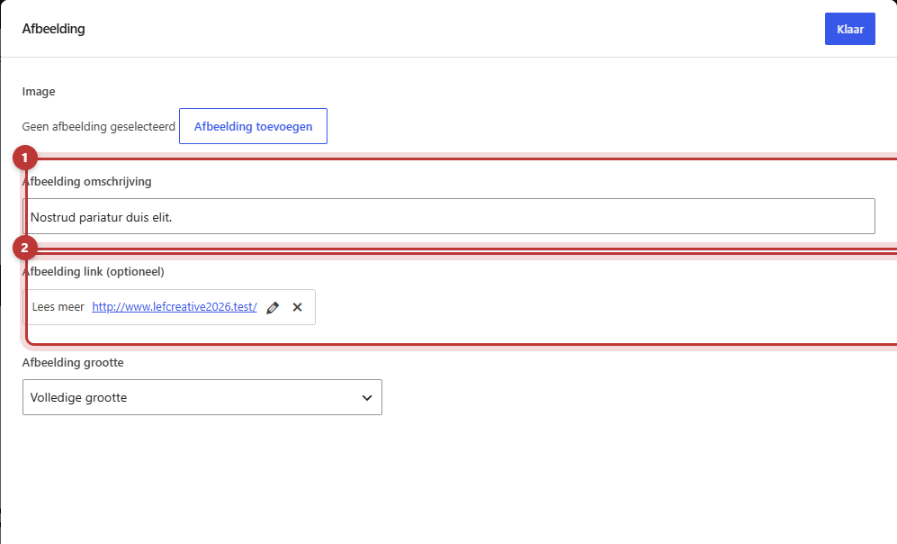
Step 3: Fill in a caption in Image description
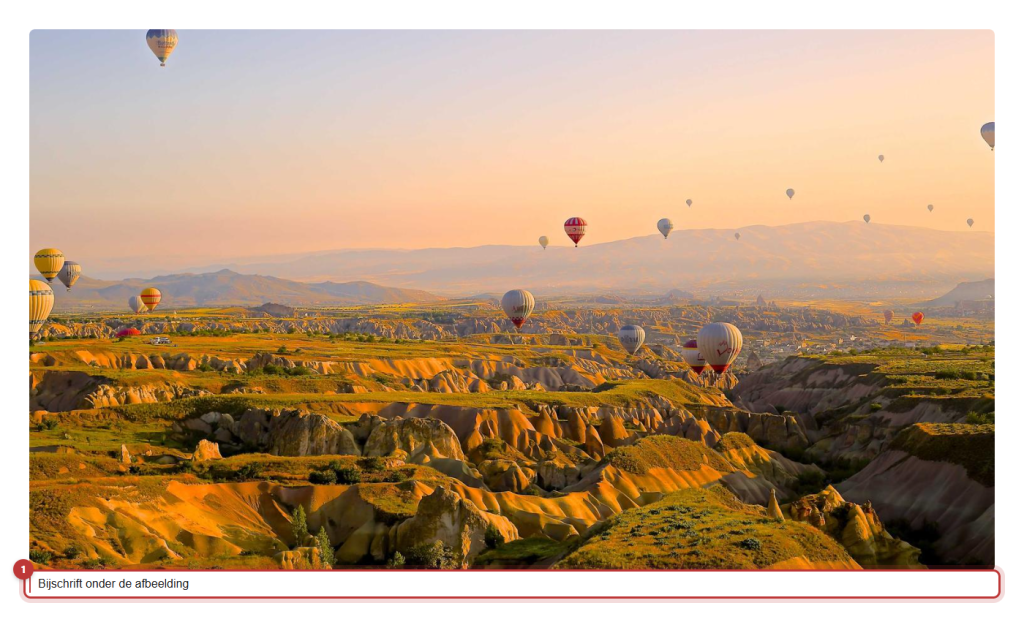
What you type in Image description will appear as a caption below the photo. Use it for a short explanation, such as the location or the project. Leave it blank if the photo speaks for itself.
Step 4: Make the photo clickable with Image link (optional)
Do you want a click on the photo to go to another page? Click on Image link (optional) to choose a link. Search for a page on your own site or paste a web address. By checking the box to open the link in a new tab, your own page will remain open. Use that only for links to other websites.
Step 5: Choose the Image size
In Image size, the default is Full size: the photo as you uploaded it. If the photo was large, choose Large (maximum 1024 pixels). That’s enough for a photo in a column and saves loading time.
Good to know: the photo will not be cropped. It maintains its own ratio and fills the width of the column. If you want a square or wide crop, crop the photo before uploading it.
Photo and text side by side, equally high
A commonly used layout is a section with two columns: text on the left, photo on the right. If they are not aligned nicely, you can adjust that in the section and the columns, not in the block. How to align columns or make them equally high can be read in aligning columns or making them equally high.
Do you want the whole column to be clickable, and not just the photo? See making a column or card fully clickable.
Having trouble?
- I can’t see the Image block in the list. You are probably not in a column. First, click in a column and use the plus sign there.
- The photo is blurry. The chosen Image size is smaller than the space. Choose a larger version.
- The photo is way too big or loads slowly. Choose Large in Image size, or upload a smaller version.
- Google or a screen reader sees no description. Fill in the Alternative text in the media library, see filling in good alt text.
- The link does not work. Check if you clicked Save and if the web address is complete, starting with https://.
Can’t figure it out? Contact us.
Share this article
Robert Oosterloo
Robert Oosterloo is eigenaar en UX/UI-designer van Lef Creative in Kollum. Hij ontwerpt websites, webshops en software voor ondernemers in Noord-Nederland.
Read also
Setting up a slider
A video as a background
A photo as the background of a section






Want a website like this?
Here you can read how easy it is to maintain a leflite site yourself. Want one too? We will think along with you, no strings attached.
Prefer direct contact? Call Robert at 06 35 66 47 73 or send a WhatsApp.