
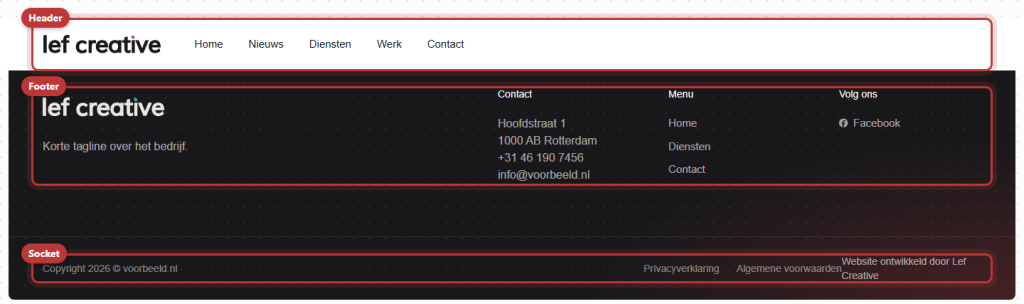
At the top of every page is the header with your logo and menu, at the bottom the footer with the bottom bar. These elements are the same throughout the website. You adjust them in one place, not per page. Here you can read what you can find where, with a link to the explanation of each component.
In short
- You manage the content of a menu in Menus.
- How the header and footer look is set in General options, on the tabs Header and Footer.
- You fill in the columns of the footer in Widgets.
- On mobile, you see a separate menu: the Mobile menu.
Creating menus: Menus
A menu is a list of links. You create it in Menus and then link it to a location on your website. Such a location is called a menu location. One menu can be in multiple locations, but usually, each location has its own menu.
The menu locations
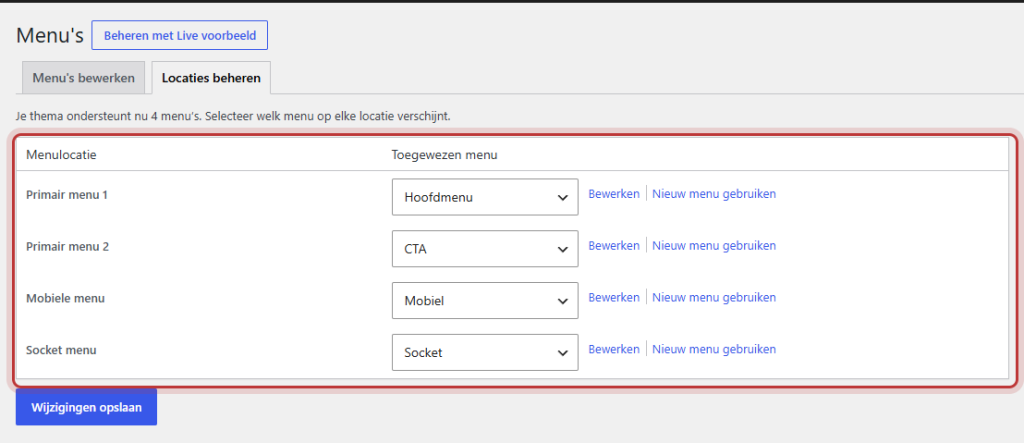
The locations you see depend on how your header is set up. You can find them on the tab Manage Locations.
- Primary menu: the main menu in the menu bar. If you use two menus in the menu bar, the locations are called Primary menu 1 and Primary menu 2.
- Mobile menu: the menu that expands on a phone or tablet.
- Socket menu: the links in the bottom bar, for example to your privacy statement.
- Topbar menu: appears only if the top bar shows a menu.
- Under menu: appears only if the extra bottom bar is enabled.
Nog geen website op leflite?
Wij bouwen hem samen met jou. Daarna pas je alles zelf aan, precies zoals in dit artikel.
- Online binnen een week
- Hosting, SSL en back-ups inbegrepen
- Vanaf €49,95 per maand

Options per menu item
When you expand a menu item, you will see a few extra options under the standard fields of WordPress:
- Display option: a regular link, a Button, or a link with an Icon.
- Display for: all visitors, or only visitors who are logged in or not logged in.
- Device visibility: all devices, only mobile, or only desktop.
- Activate mega menu: only on the top items of the main menu and the sub-menu.
Read how to add a button or icon to the menu and how to set up a mega menu.
The header: General options → Header
In the menu on the left in WordPress, you will find General options. On the tab Header, you set three things: the top bar above the menu, the header itself, and the menu bar.
- Scrolling, color, and width: set the header.
- What appears in the menu bar (logo, one or two menus, text): organize the menu bar.
- A narrow bar with USPs or buttons above the menu: set up a top bar.
The footer: General options → Footer and Widgets
The footer consists of columns with content and below it the socket: the narrow bottom bar with the copyright text. On the tab Footer, you choose the color, the number of columns, and their width. You place the content of the columns in Widgets. Read how to adjust the footer and the bottom bar and how to use widgets.
What do you see on mobile?
Up to 991 pixels wide (phones and most tablets), you see a hamburger button instead of the menu. This opens the Mobile menu. This is a separate menu, so you also place new pages there. The top bar, the bottom bar, and a search field or other shortcode in the menu bar are hidden on mobile. Read how to set up the menu on mobile.
Tip: do you still see a hamburger button on a laptop? Then your menu does not fit on one line. Make it shorter or place less important pages in a submenu. See adjust the main menu.
All articles about menus and footer
- How do I adjust the main menu?
- How do I set up the menu on mobile?
- How do I add a button or icon to the menu (and show an item only on mobile)?
- How do I set up a mega menu?
- How do I set the header (scrolling, color, width)?
- How do I determine what appears in the menu bar (logo, menus, text)?
- How do I add a top bar with USPs or buttons above the menu?
- How do I adjust the footer and the bottom bar?
- How do I fill the footer or a sidebar with widgets?
Share this article

Robert Oosterloo
Robert Oosterloo is eigenaar en UX/UI-designer van Lef Creative in Kollum. Hij ontwerpt websites, webshops en software voor ondernemers in Noord-Nederland.
Read also
Create a subpage
An anchor link to a section
A search function on your website






Want a website like this?
Here you can read how easy it is to maintain a leflite site yourself. Want one too? We will think along with you, no strings attached.
Prefer direct contact? Call Robert at 06 35 66 47 73 or send a WhatsApp.