
How do I determine what appears in the menu bar (logo, menus, text)?

Robert Oosterloo
Updated on · 4 min read
The menu bar is the row in the header with your logo and menu. You choose which elements are included and in what order: logo on the left or in the center, one or two menus, a text or a search field. Below that, there can be a second bar with its own menu.
In short
- Choose the elements in Menu bar display in General options → Header.
- The order in which you place them is the order on your website. You can drag them.
- With Primary menu 2 you get a second menu, for example for a button or the logo in the center.
- Under menu bar display turn on an extra bar below the header.
Menu bar display: choose and drag the elements
Go to General options, tab Header, section Menu settings. In Menu bar display you choose from:
- Logo
- Primary menu 1: your main menu.
- Primary menu 2: a second menu.
- Shortcode: for example a search field or your phone number.
- Text: a short, fixed text.
Each element can only appear once in the bar. Drag the selected elements in the order you want and click Update.
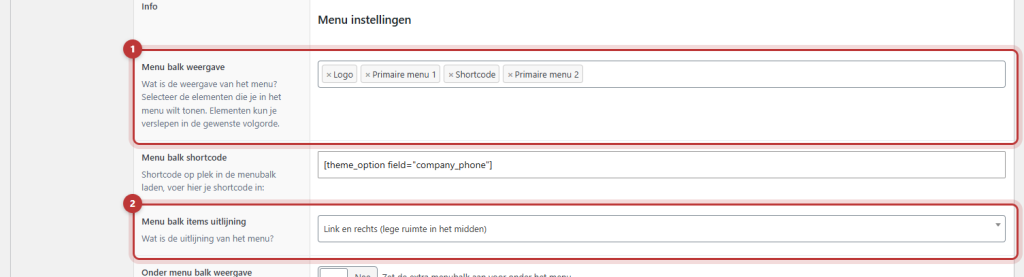
If you choose Primary menu 2, then you have two menu locations in Menus: Primary menu 1 and Primary menu 2. Link a menu to each location. Commonly used: in menu 1 your pages, in menu 2 just a button. See a button in the menu.
Logo in the center with two menus
Arrange the elements in the order Primary menu 1, Logo, Primary menu 2. The logo will then be in the center, with a menu on the left and right. Distribute your pages evenly across the two menus, otherwise the logo will not look nice in the center.

Nog geen website op leflite?
Wij bouwen hem samen met jou. Daarna pas je alles zelf aan, precies zoals in dit artikel.
- Online binnen een week
- Hosting, SSL en back-ups inbegrepen
- Vanaf €49,95 per maand

Menu bar text and Menu bar shortcode
If you choose Text or Shortcode, a field will appear:
- Menu bar text: a short fixed text, for example a slogan. Shortcodes do not work here, even if the explanation in the field says otherwise.
- Menu bar shortcode: here shortcodes do work. For example
[lef_search]for a search field (see a search function on your website) or[theme_option field="company_phone"]for your phone number as a link.
Alignment
In Menu bar items alignment you choose:
- Left and right (empty space in the middle): the elements are on the left and right, with space in between. This is the default.
- Right and left (empty space in the middle): the same, but mirrored.
- Center: everything is in the center.
The lower bar (Under menu bar)
Turn on Under menu bar display for a second bar below the menu bar, with its own menu. Useful for a webshop with many categories. You choose the Under menu bar items alignment and the Under menu color (default gray). You link the menu in Menus to the location Under menu. There can also be a mega menu there.
What do you see on mobile?
On screens up to 991 pixels wide, you see the logo and the hamburger button. The menus, the shortcode, and the lower bar are then hidden. What visitors need to find on mobile, you place in the mobile menu. See setting the menu on mobile.
Tip: keep the menu bar calm. Logo, one menu, and one button is often enough. Extra information, such as USPs or your opening hours, can go in a top bar above the menu. How the header itself looks, you can read in setting the header.
Having trouble?
- The second menu remains empty. Link a menu to the location Menus at Primary menu 2.
- You see the shortcode as text, for example
[lef_search]. You have placed it in Menu bar text. Use Menu bar shortcode. - The menu becomes a hamburger on a laptop. There is too much in the bar. Remove an element or shorten the menu.
- The search field is gone on mobile. The shortcode is hidden on mobile. Add the Search item to the mobile menu.
- Can’t figure it out? contact us.
Share this article
Robert Oosterloo
Robert Oosterloo is eigenaar en UX/UI-designer van Lef Creative in Kollum. Hij ontwerpt websites, webshops en software voor ondernemers in Noord-Nederland.
Read also
Create a subpage
An anchor link to a section
A search function on your website






Want a website like this?
Here you can read how easy it is to maintain a leflite site yourself. Want one too? We will think along with you, no strings attached.
Prefer direct contact? Call Robert at 06 35 66 47 73 or send a WhatsApp.