
Everything about your leflite website: this is how it is structured

Robert Oosterloo
Updated on · 5 min read
Your website runs on WordPress with leflite, the theme developed by Lef Creative itself. If you know how a page is structured and where the settings for the entire site are located, you can customize almost everything yourself. In this article, you’ll get that overview, with links to the explanation of each component.
In short
- Each page consists of sections, each section consists of columns, and in a column, you place blocks.
- What applies to the entire site (logo, company information, header, footer) is found under General options.
- Sections that you use frequently can be saved as Builders and placed as patterns.
- You can adjust menus under Menus, and you fill the footer under Widgets.
What is leflite?
leflite is the WordPress theme on which your website is built. It determines how your site looks (your brand colors, fonts, buttons) and which components you can use. You manage everything in the regular WordPress admin: you log in, open a page, and edit it. Not sure how to log in? First, read how to log in to your website.
The theme and the builder
In addition to the theme, there is a built-in builder in your website: the plugin Lef Creative container & columns block. This allows you to divide a page into sections and columns. The blocks you place in those columns (text, buttons, images, cards) come from the theme. The theme and builder work together; without either one, the editor does not function.
The building blocks: page, section, column, block
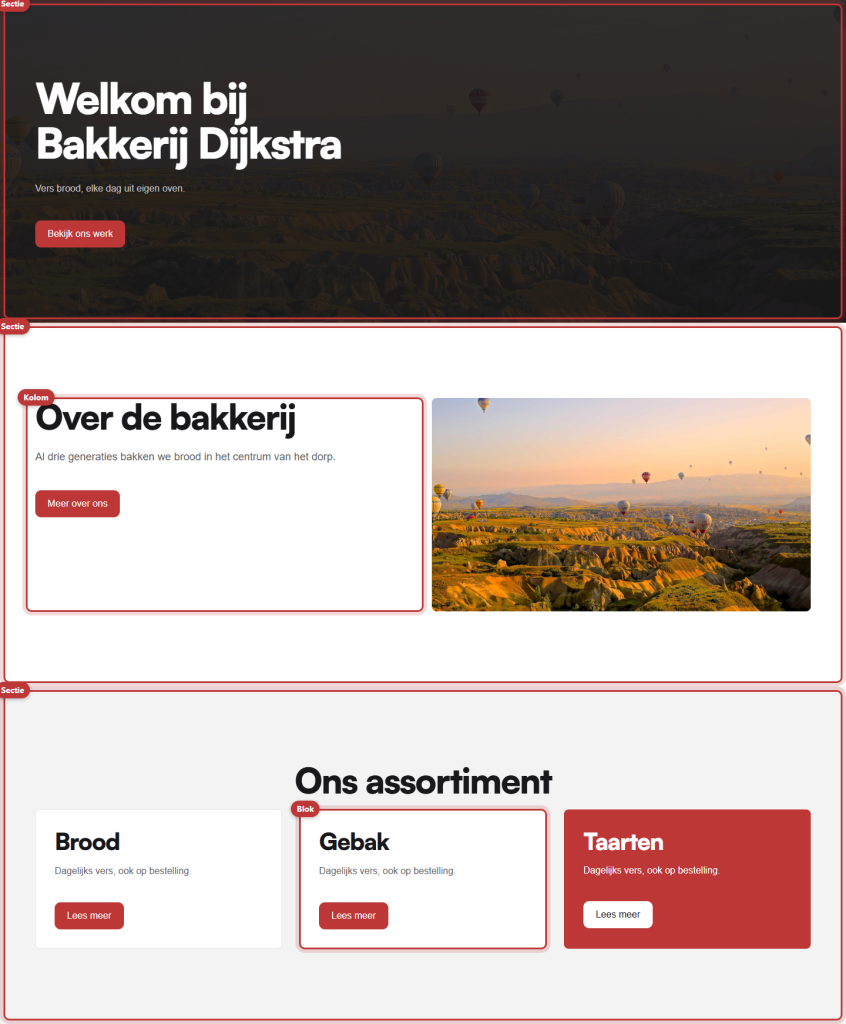
Each page is structured in the same way, from large to small:
- Page: for example, your homepage or the Contact page.
- Section: a band that spans the full width of the screen. A section has a background (a color, photo, or video) and determines the space above and below.
- Column: a box within the section. A section can have one to four columns side by side, on a grid of 12.
- Block: the content itself, such as the block Text, Buttons, or Image.
A block is always placed in a column, and a column is always in a section. How to add and arrange a section is explained in adding a section and arranging in columns.
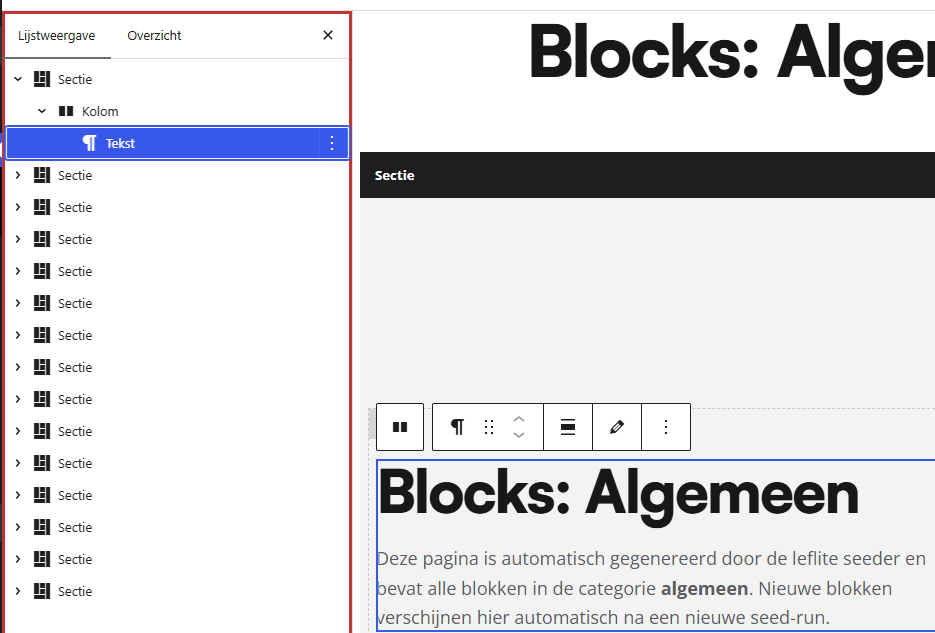
Why don’t you see blocks like Paragraph or Image from WordPress?
WordPress also has blocks, such as Paragraph and Heading. These are intentionally disabled in leflite. In a column, you choose from the theme’s blocks, under General blocks and Cards (and in a webshop also Webshop blocks). This keeps the formatting, spacing, and colors consistent everywhere, even when multiple people are working on the site. An overview of all blocks can be found in everything about blocks.
Nog geen website op leflite?
Wij bouwen hem samen met jou. Daarna pas je alles zelf aan, precies zoals in dit artikel.
- Online binnen een week
- Hosting, SSL en back-ups inbegrepen
- Vanaf €49,95 per maand

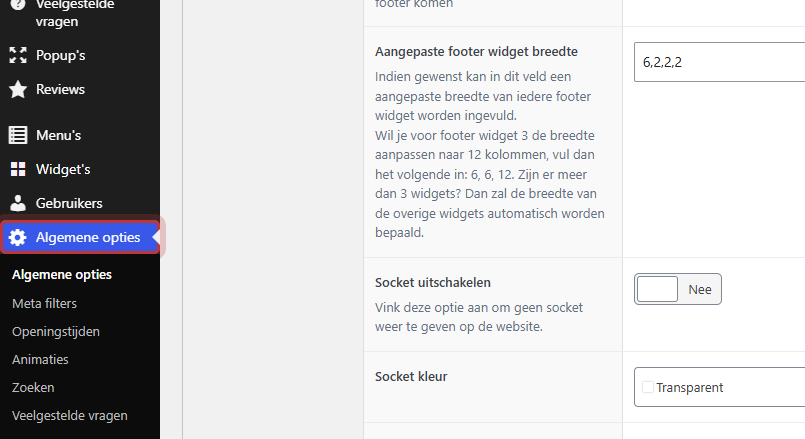
What do you centralize? The General options
Some things apply to the entire website. You set those once, under General options in the left menu. At the top of each options page, there is a row of buttons that lets you quickly jump to the other components:
- General options itself, with the tabs Logo & Basics, Header, Footer, and Filter.
- Company information: phone number, email address, address, and social media.
- Opening hours, Notification (a message at the top of your site), Animations, and Search.
- Emails: the emails for new users and password recovery.
- Each module has its own page, such as Frequently Asked Questions and Reviews. For a webshop, Webshop and Delivery time are added.
Any data you change here will update everywhere on the site. More about this in everything about the General options.
What do you reuse? Builders and patterns
A section that appears on multiple pages, such as a block with a call to contact, you create once as a Builder (menu Builders). On a page, you add it with the button + Add pattern at the bottom of the editor. A synchronized pattern can be edited in one place, and then it changes everywhere. Read what builders and patterns are.
Menus, header, and footer
You can adjust the menu at the top under Menus in the left menu. The footer consists of widgets, which you fill under Widgets. How the header and footer look (scrolling, color, number of columns) is set in the tabs Header and Footer of the General options.
Modules: frequently asked questions, reviews, and pop-ups
leflite has extra components that you fill separately, such as Frequently Asked Questions, Reviews, and Pop-ups. You first enable frequently asked questions and reviews under General options; then they appear in the menu. You can display them on a page with a block.
Where do you start?
Just received your website? Read these five articles in this order:
- Logging in to your website (and what to do if you forget your password).
- Finding your way in the WordPress dashboard.
- What the editor is and how it works.
- Adding a section and arranging in columns.
- Working safely with drafts, previews, and previous versions.
All articles about getting started
- How do I log in to my website (and what if I forget my password)?
- Why do I need to confirm my login via email?
- How do I find my way in the WordPress dashboard?
- How do I add a new user and what role do I choose?
- What is the difference between a page and a post?
- How do I work safely on a page: draft, preview, and previous versions
Tip: if you’re unsure whether something might break, first save your change as a draft and check the preview. And if something doesn’t work, call us at 06 35 66 47 73 or email info@lefcreative.nl.
Frequently Asked Questions
Yes. You can edit texts, photos, pages, menus, and most settings yourself in WordPress. Only the brand style itself (colors and fonts) is managed by us.
In leflite, you work with custom blocks, such as the block Text. This keeps the formatting consistent everywhere.
Share this article
Robert Oosterloo
Robert Oosterloo is eigenaar en UX/UI-designer van Lef Creative in Kollum. Hij ontwerpt websites, webshops en software voor ondernemers in Noord-Nederland.
Read also
Finding your way in the dashboard
Page or post?
Draft, preview, and previous versions






Want a website like this?
Here you can read how easy it is to maintain a leflite site yourself. Want one too? We will think along with you, no strings attached.
Prefer direct contact? Call Robert at 06 35 66 47 73 or send a WhatsApp.