
What is Gutenberg?
- Leflite theme

Robert Oosterloo
Updated on · 3 min read
Gutenberg is the editor of WordPress where you build pages and posts from blocks. Each piece of content is a separate block: a paragraph of text, an image, a button, a list. You can place blocks above and next to each other, move them around, and adjust them, while seeing how the page will look as you work. The name comes from Johannes Gutenberg, the inventor of movable type printing.
In short
- Gutenberg is the block editor of WordPress, standard since WordPress 5.0 (December 2018).
- A page consists of blocks: text, images, buttons, lists, and more.
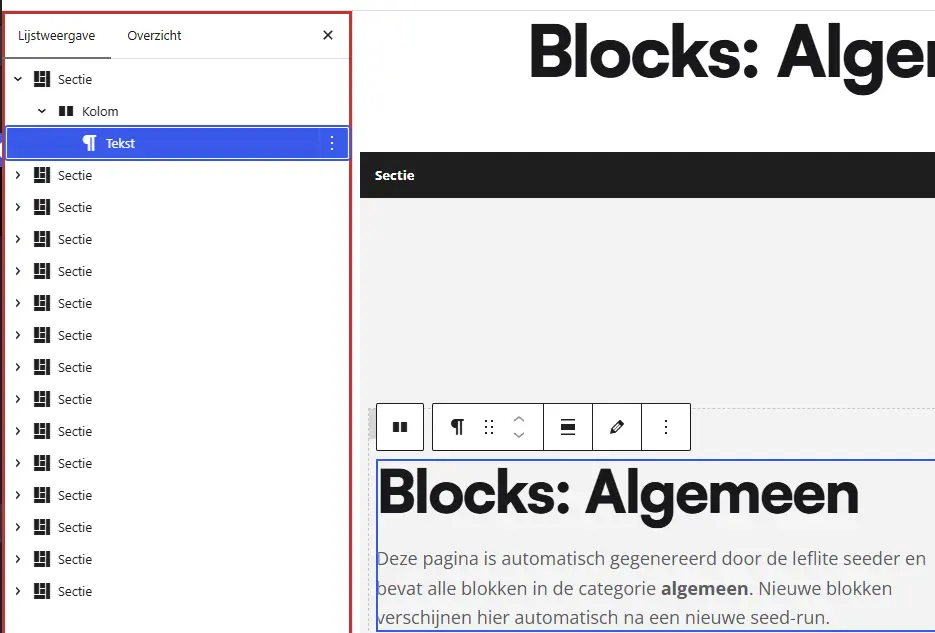
- In leflite, blocks are arranged in columns, and columns in sections.
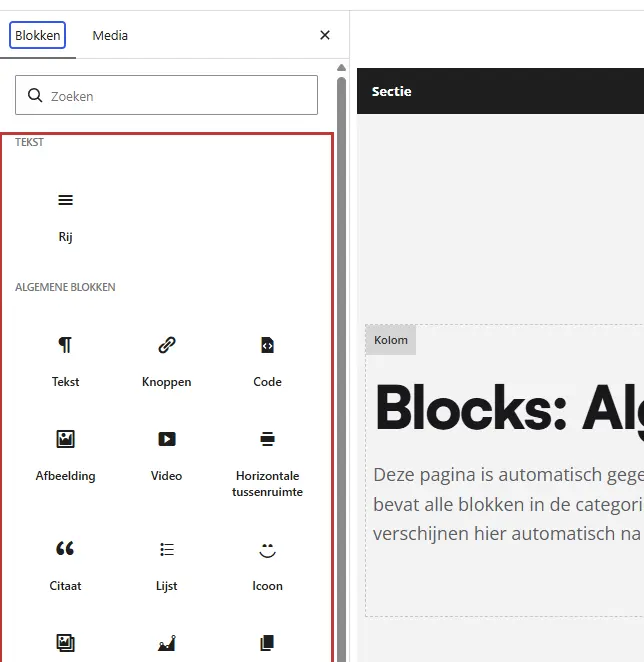
- You add a block with the +; with the list view, you can see how the page is structured.
Why blocks?
Before Gutenberg, WordPress had one large text box, similar to a word processor. A photo next to text or a row of buttons could only be done with tricks or custom code. With blocks, each component is independent: you can pick up a block and place it somewhere else without shifting the rest of the page. And what you see in the editor closely resembles what your visitor will see later.
Gutenberg in your leflite website
Your leflite website uses Gutenberg, with a fixed structure in three layers:
- Sections: bands across the width of the page, with their own background and spacing.
- Columns: within a section, you divide the width, for example into two or three columns.
- Blocks: the content in a column, such as text, an image, buttons, or an accordion.
In addition to the standard blocks from WordPress, leflite has its own blocks, designed in the style of your branding. Which ones they are is detailed in everything about blocks. How sections and columns work is explained in everything about pages and sections.
No website on leflite yet?
We will build it together with you. After that, you can adjust everything yourself, just like in this article.
- Online within a week
- Hosting, SSL, and backups included
- Starting from €49,95 per month

Here’s how to work with blocks
- Adding a block: click on the + in a column and choose a block, or type part of the name in the search field.
- Adjusting a block: click on it. The settings for that block will appear on the right, and a toolbar will show above the block.
- Moving, copying, or deleting a block: via the toolbar or the list view. See moving, copying, or deleting a block.
- Keeping track: the list view (the icon with three lines in the top left) shows how the page is structured, section by section.
Tip: fixed components that appear on multiple pages, such as your contact block, do not need to be built again each time. You can add them as a pattern.
Frequently asked questions
No longer. Gutenberg has been included as the block editor in WordPress since version 5.0. The name Gutenberg is still used for the project in which the editor is developed.
Not with a leflite website: the theme and blocks are made for the block editor.
Share this article
Robert Oosterloo
Robert Oosterloo is eigenaar en UX/UI-designer van Lef Creative in Kollum. Hij ontwerpt websites, webshops en software voor ondernemers in Noord-Nederland.
Read also
Automatically display posts or pages
Automatically inserting phone number in text
Setting up a slider






Want a website like this?
Here you can read how easy it is to maintain a leflite site yourself. Want one too? We will think along with you, no strings attached.
Prefer direct contact? Call Robert at 06 35 66 47 73 or send a WhatsApp.