
How do I create tabs that show different sections?

Robert Oosterloo
Updated on · 4 min read
Do you have a lot to say about different services or target groups? With the block Section tabs, you can create a row of tabs on your page. A click on a tab shows the corresponding section and hides the others. This keeps your page concise, allowing the visitor to choose what they want to read.
In short
- First, create the sections that correspond to the tabs and give each section a Container custom ID.
- Place the block Section tabs in a section above.
- Fill in the Tab title and the Linked section ID for each tab.
- The ID for the tab must exactly match the ID of the section.
- On the website, only one section is visible at a time: the one from the active tab.
How does it work?
Each tab corresponds to a section on the same page. You create the link with an ID: a short name that you fill in both for the section and the tab, for example websites. On the website, leflite only shows the section of the active tab. The first tab is open when the page loads.
Step 1: Create the sections and give each an ID
- Create a separate section for each tab, stacked vertically. See adding a section.
- Select the first section. Click on the icon of the parent block in the toolbar until the section is selected.
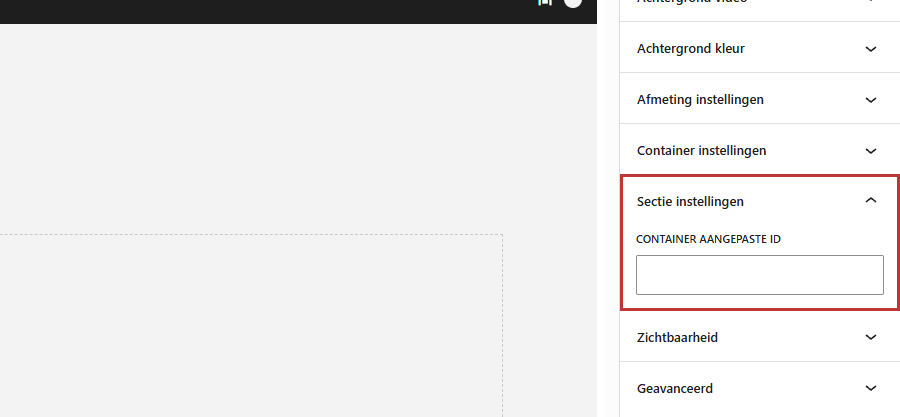
- Open the Section settings panel on the right and fill in a short name under Container custom ID, for example
websites. Use only lowercase letters, numbers, and dashes, without spaces. - Do the same for the other sections, with a different name:
webshops,links.
Nog geen website op leflite?
Wij bouwen hem samen met jou. Daarna pas je alles zelf aan, precies zoals in dit artikel.
- Online binnen een week
- Hosting, SSL en back-ups inbegrepen
- Vanaf €49,95 per maand

Step 2: Add the Section tabs block
Create a new section for the tabs above the sections. Click on the + (Add block) in the column, type ‘tabs’, and choose Section tabs. The editing window will open.
Step 3: Fill in the fields for each tab
Click under Tabs on New row for each tab. For each tab, fill in:
- Tab image (optional): a photo or illustration above the title.
- Tab title: the name of the tab, for example ‘Websites’.
- Tab introduction (optional): one short sentence under the title.
- Linked section ID: the ID of the section that corresponds to this tab, exactly as you filled it in for the section.
- Read more button text: the text on the button in the tab. If you leave it empty, it will say ‘Read more’.
- Read more button hide: turn on if you do not want a button in the tab.
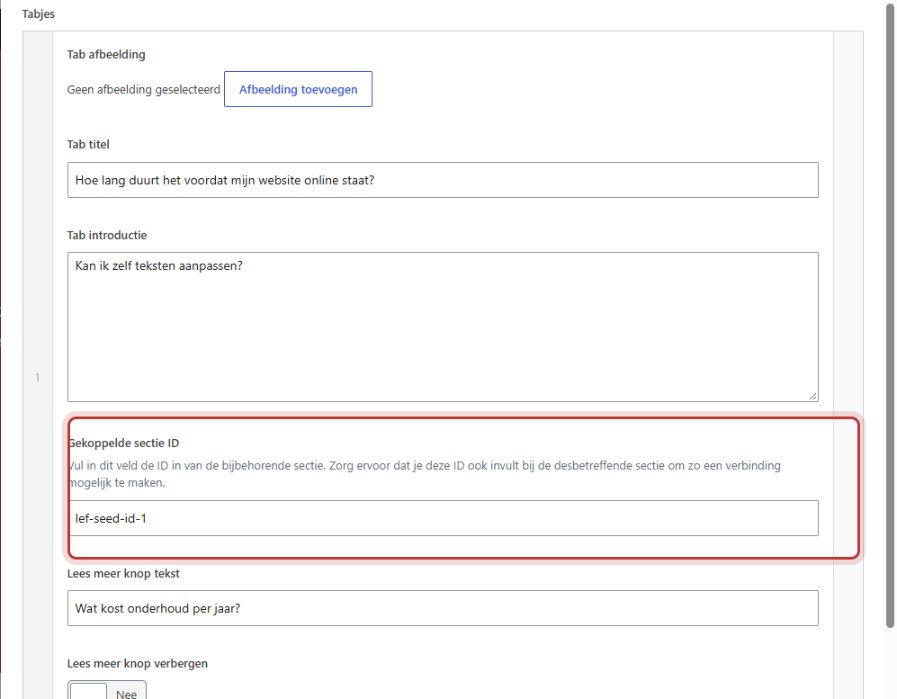
Note: a tab without a Linked section ID will not be displayed. And if the ID does not match exactly, the tab will not work. Pay attention to uppercase letters, spaces, and typos.
Step 4: Tabs per row and button color
In Tabs per row, choose 6, 4, 3, or 2. If you choose nothing, 6 will fit in a row. If you have three tabs, choose 3 so they fill the entire width. In Color, choose the color of the button in the tabs.
Click on Done and then on Save. View the page on the website: in the editor, you will see all sections stacked vertically.
What does the visitor see?
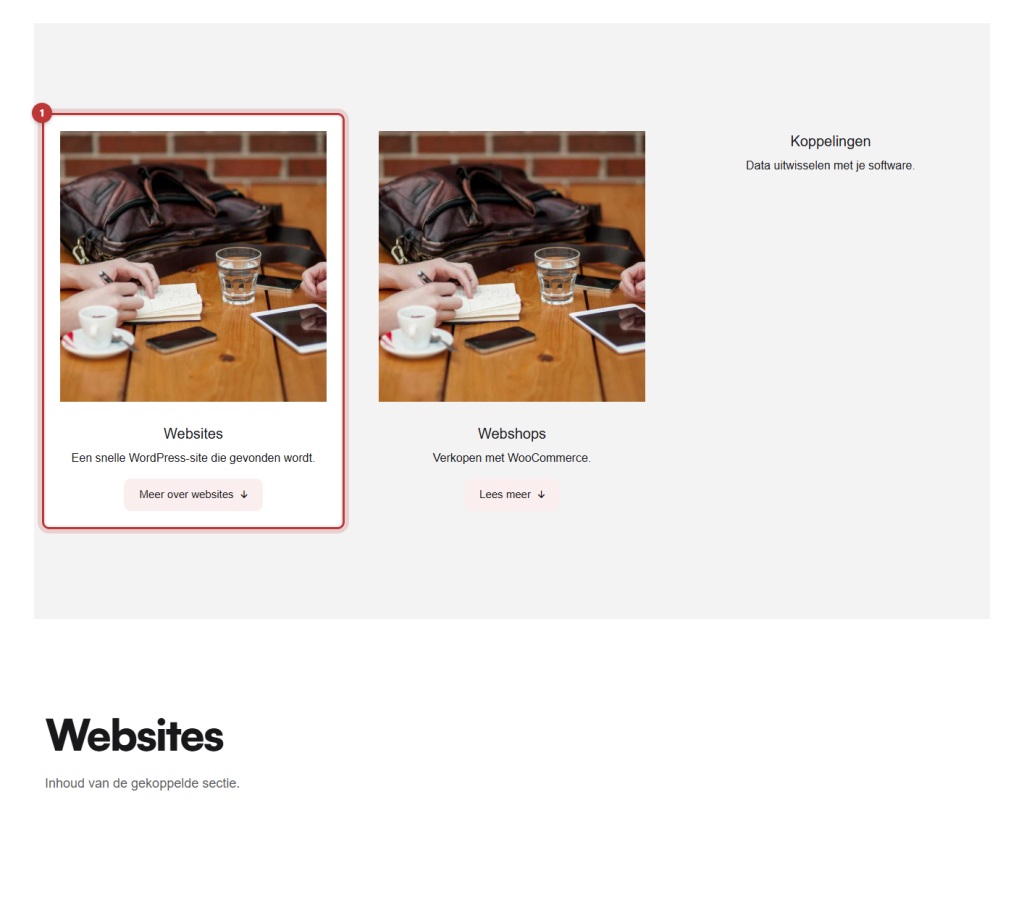
The visitor sees the row of tabs with the section of the active tab below. The active tab is highlighted. If they click on another tab, that section will appear. On a phone, the page will scroll to that section.
Link directly to a tab
When a visitor clicks on a tab, the ID will appear after the web address, for example /services/#webshops. If you use such an address in a link or button, the page will open immediately with that tab. Handy for a button on another page. You can read more about such links in linking to a place further down the page.
Tabs or accordion?
Tabs are useful for a few large blocks of content, such as a section for each service. For many short pieces of text, like questions and answers, an accordion is better. See collapsible blocks with the accordion.
Having trouble?
- You see all your sections at once. The ID for the tab does not exactly match the ID of the section. Check both.
- A tab is missing. The Linked section ID of that tab is empty.
- In the editor, you see all sections. That’s correct: showing and hiding only happens on the website.
- The tabs are too close together or too far apart. Adjust Tabs per row to match the number of tabs.
- Can’t figure it out? Contact us.
You can find all blocks in all blocks in one row.
Frequently asked questions
Check if the ID for the tab exactly matches the ID in Container custom ID of the section.
Share this article
Robert Oosterloo
Robert Oosterloo is eigenaar en UX/UI-designer van Lef Creative in Kollum. Hij ontwerpt websites, webshops en software voor ondernemers in Noord-Nederland.
Read also
Automatically display posts or pages
Setting up a slider
Using the Text block






Want a website like this?
Here you can read how easy it is to maintain a leflite site yourself. Want one too? We will think along with you, no strings attached.
Prefer direct contact? Call Robert at 06 35 66 47 73 or send a WhatsApp.