
Everything about images and video on your website

Robert Oosterloo
Updated on · 4 min read
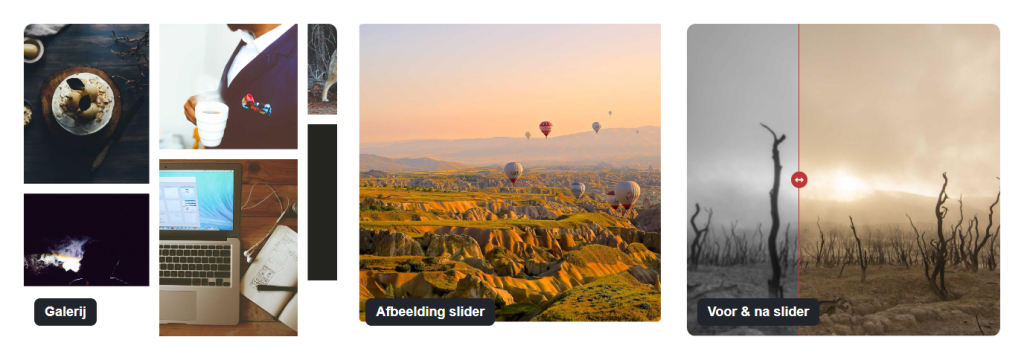
A photo next to your text, a gallery of projects, a slider, a YouTube video, or a photo as the background of an entire section: on your leflite website, every type of image has its own block. In this overview, you can see which block to choose when, and where to find the step-by-step instructions.
In short
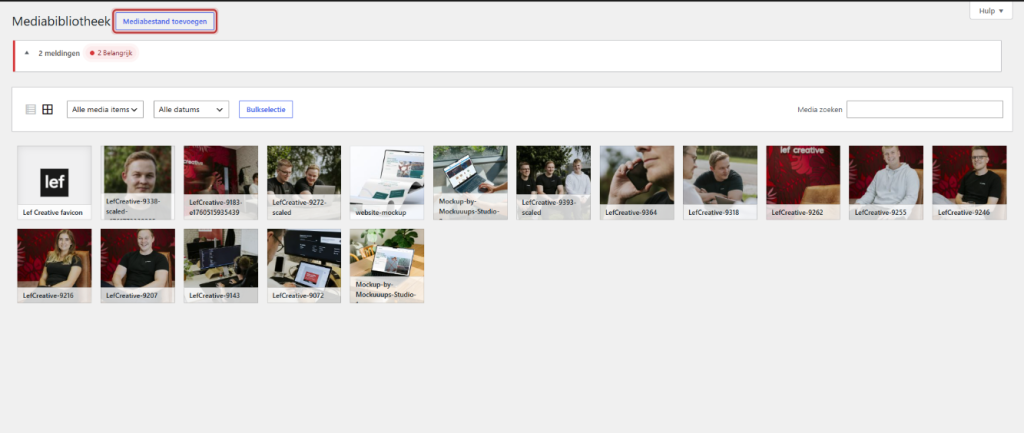
- All your images are in the media library (Media → Library).
- One photo: the block Image. Multiple photos: Gallery or Image slider.
- To compare two photos: Before & after slider. A video: the block Video.
- A photo or video behind an entire section is set in the section itself, not with a block.
- Upload photos in the correct format: this saves the most loading time.
First: the correct format
A photo directly from your phone or camera is often 4000 pixels wide and a few megabytes large. That is far too heavy for a website. Therefore, resize your photos before uploading them: a maximum of 1920 pixels wide for a background, around 1200 pixels for a photo in a column. How to do that is explained in uploading images in the correct format.
WordPress automatically creates smaller versions with each upload. By default, these include Thumbnail (150 px), Medium (300 px), Medium large (768 px), and Large (1024 px). In the image blocks, you choose with Image size which version your visitor receives.
Nog geen website op leflite?
Wij bouwen hem samen met jou. Daarna pas je alles zelf aan, precies zoals in dit artikel.
- Online binnen een week
- Hosting, SSL en back-ups inbegrepen
- Vanaf €49,95 per maand

One photo: the block Image
For one photo in a column, use the block Image. You can add a caption below it (Image description) and make the photo clickable (Image link (optional)). The photo retains its own aspect ratio and gets the rounded corners from your branding. See placing an image with a caption or link.
Multiple photos: gallery or slider
If you want to display multiple photos at once, choose the Gallery. This places your photos in a grid (Grid), a Mosaic, or a Masonry, and opens a photo large when clicked. Read creating a photo gallery.
Do you want to show the photos one after the other, with arrows or automatically? Then the Image slider is more convenient. A slide can also contain a video. See creating a slider with photos (or video).
Comparing: before-and-after
Are you showing the result of a renovation, treatment, or makeover? With the Before & after slider, your visitor can slide between two photos. How to set that up is explained in comparing two photos with the before-and-after slider.
Video: block or background
A video from YouTube or Vimeo can be placed on the page with the block Video: just paste the link and you’re done. The player only loads when the visitor clicks play, and YouTube videos go through youtube-nocookie.com. Read placing a video from YouTube or Vimeo.
A video that plays silently in the background of a section is set in the section under Background video. See a video as a background.
Photo as background of a section
A photo behind your text, possibly with a dark layer or gradient, is set in the section itself under Background image. There is no separate block for this. How it works is explained in a photo as a background of a section.
Good to know: a section background always uses the full photo you upload, not a smaller version. So, never upload backgrounds larger than necessary.
Which block should I choose?
| What do you want to show? | Choose |
|---|---|
| One photo in a column, possibly with a caption or link | Image |
| A series of photos at once, viewed large when clicked | Gallery |
| Photos one after the other, with arrows or automatically | Image slider |
| A row of logos from clients or partners | Gallery (static) or Image slider (moving) |
| The difference between two photos | Before & after slider |
| A video from YouTube or Vimeo | Video |
| A photo or video behind an entire section | Section setting Background image or Background video |
All articles about images and video
- How do I upload images in the correct format?
- How do I place an image with a caption or link?
- How do I fill in a good alt text?
- How do I create a photo gallery (grid, mosaic, or masonry)?
- How do I make a photo in the gallery clickable to another page?
- How do I create a slider with photos (or video)?
- How do I compare two photos with the before-and-after slider?
- How do I place a video from YouTube or Vimeo?
- How do I create a row of logos from clients or partners?
Has your website become slow due to a lot of images? Read why your website is slow and what you can do about it.
Share this article
Robert Oosterloo
Robert Oosterloo is eigenaar en UX/UI-designer van Lef Creative in Kollum. Hij ontwerpt websites, webshops en software voor ondernemers in Noord-Nederland.
Read also
Setting up a slider
A video as a background
A photo as the background of a section






Want a website like this?
Here you can read how easy it is to maintain a leflite site yourself. Want one too? We will think along with you, no strings attached.
Prefer direct contact? Call Robert at 06 35 66 47 73 or send a WhatsApp.