
How do I create more space between two blocks?

Robert Oosterloo
Updated on · 3 min read
Are two blocks too close together, for example, a text and a button? With the block Horizontal Spacing, you can add an empty strip between them. You choose how high. In this article, you will also read when it’s better to use a different setting.
In short
- Place the block Horizontal Spacing between the two blocks.
- Set the height in Spacing, from 0 to 200 pixels.
- The space is the same height on every screen, including mobile.
- Space above or below an entire section is controlled by the section’s padding.
Step 1: Add Horizontal Spacing
Click on the + (Add Block), type ‘spacing’ and choose Horizontal Spacing. Place the block exactly between the two blocks that need to be further apart. If it’s in the wrong place, move it with the arrows in the toolbar. See moving a block.
Step 2: Set the Spacing
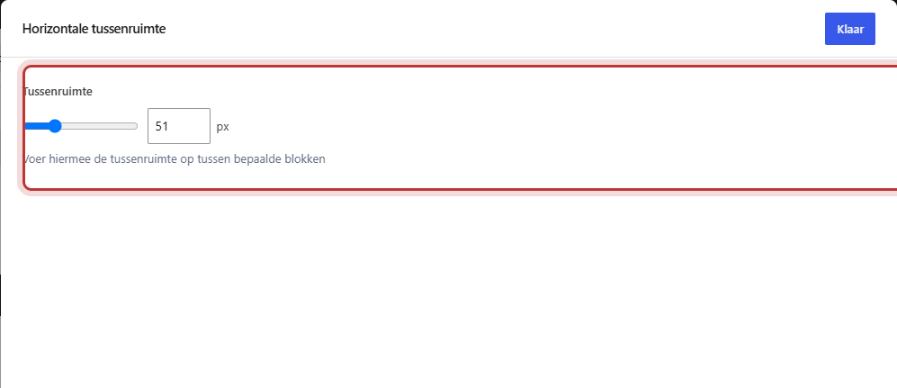
In the editing window, there is one setting: Spacing. Drag the slider or type a number in pixels, from 0 to 200. Start with 30 to 60 pixels; that’s usually enough. Click on Done and check the result in the editor.
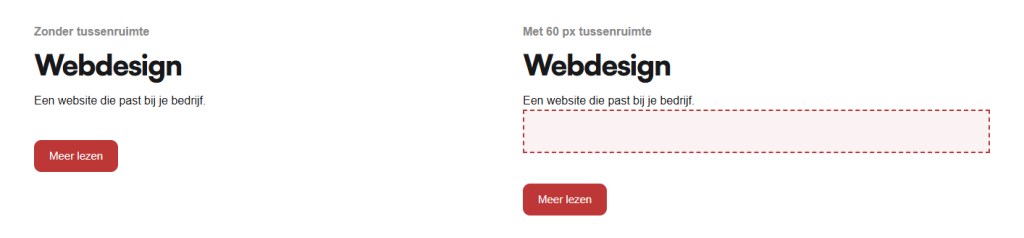
Note: the spacing is the same height on every screen. 150 pixels looks airy on a large screen, but on a phone, it’s a big empty gap. Always check how it looks on mobile, and if in doubt, choose less space.
Nog geen website op leflite?
Wij bouwen hem samen met jou. Daarna pas je alles zelf aan, precies zoals in dit artikel.
- Online binnen een week
- Hosting, SSL en back-ups inbegrepen
- Vanaf €49,95 per maand

Space between sections? Use padding
If you want more space above or below an entire section, for example, between two colored bands? Then don’t use a spacing block, but the padding of the section. Select the section and open the panel on the right Size settings. Turn Set Padding on and choose Top Padding and Bottom Padding. Here you can also set separate values for mobile. More about that in adjusting the height, space, and width of a section.
Space between columns? Use an empty column
This block only creates space from top to bottom. If you want columns further apart, or to shift a column towards the center? Then create an extra column and leave it empty. How to arrange columns is explained in adding a section and dividing into columns.
When to use what?
| You want | Use |
|---|---|
| More space between two blocks in one column | Horizontal Spacing |
| More space above or below a section | Size settings of the section |
| Columns further apart | An empty column |
| Less space on mobile | Padding of the section, with separate mobile values |
Tip: use the same few values throughout your site, such as 30 and 60 pixels. This will make your site look calm and consistent.
Not working?
- You see no extra space. The Spacing is set to 0. Slide it higher and click Done.
- On mobile, there is too much space. Choose a lower value, or use the section’s padding with its own mobile value.
- You cannot place the block between two sections. Correct, a block always sits in a column. Use the section’s padding.
- You want space on the left or right. That is not possible with this block. Use an empty column.
- Can’t figure it out? Contact us.
You can find other blocks in all blocks in a row.
Share this article
Robert Oosterloo
Robert Oosterloo is eigenaar en UX/UI-designer van Lef Creative in Kollum. Hij ontwerpt websites, webshops en software voor ondernemers in Noord-Nederland.
Read also
Automatically display posts or pages
Setting up a slider
Using the Text block






Want a website like this?
Here you can read how easy it is to maintain a leflite site yourself. Want one too? We will think along with you, no strings attached.
Prefer direct contact? Call Robert at 06 35 66 47 73 or send a WhatsApp.