
How do I set how products are displayed in the overview?

Robert Oosterloo
Updated on · 4 min read
The product card is the block with photo, name, and price that you see in your store and in the Highlight Products block. In the Products tab, you determine how the photo fits in, which labels are displayed, whether customers can order directly, and what is visible on the product page.
In short
- Go to General options → Webshop, tab Products.
- Display image in product card determines whether the photo is cropped or fully visible.
- Labels: Show ‘Out of stock’ label and Show labels on product image.
- You can hide the description and attributes on the product page.
Step 1: Open the Products tab
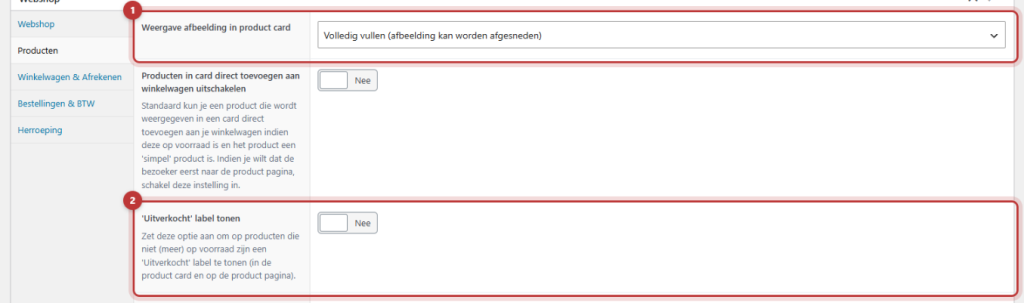
Go to General options → Webshop and click on the Products tab. Each setting here applies to all products. After making a change, click Update.
The photo in the card
In Display image in product card, you choose:
- Fill completely (image may be cropped): the photo fills the box; the edges may be cut off. Nice for atmospheric photos.
- Fill completely (image may stretch): the photo fills the box but may distort slightly. Use this only if all your photos have nearly the same aspect ratio.
- Full display (gray edges possible at the edges): the entire photo is visible, with possibly empty space around it. Good for product photos on a white background.
Tip: Upload all your product photos in the same aspect ratio, for example, square. This way, your cards will always look neat, regardless of the setting you choose. See also uploading images in the correct format.
Nog geen website op leflite?
Wij bouwen hem samen met jou. Daarna pas je alles zelf aan, precies zoals in dit artikel.
- Online binnen een week
- Hosting, SSL en back-ups inbegrepen
- Vanaf €49,95 per maand

Directly in the shopping cart
By default, a card has a quantity field and a button to add the product directly to the shopping cart. This works for a simple product that is in stock. Do you want visitors to see the product page first, for example, because they need to choose a size or read the description? Then turn Disable direct addition of products in card to shopping cart on.
The Out of Stock label
Turn Show ‘Out of Stock’ label on to display a label for products that are not in stock, both in the card and on the product page. In ‘Out of Stock’ label text, you can adjust the text, for example, “Temporarily out of stock”. Leaving it blank means “Out of Stock”.
Labels on the photo
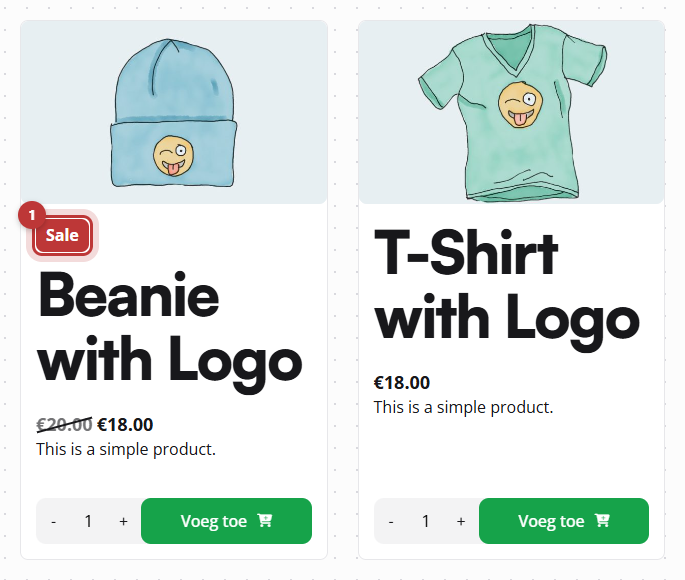
A product on sale gets the label Sale. By default, the labels are above the product name. Turn Show labels on product image (product card) on to place the Sale and Out of Stock labels in the top left corner of the photo.
Out of stock variations
If a product has variations, such as sizes? Then WooCommerce hides variations that are not in stock. Turn Show out of stock variations on to display them. They cannot be ordered. If you use the Back In Stock Notifier plugin, the customer can sign up for a notification when it is back in stock for that variation.
Hide description and attributes
On the product page, the product description and product attributes are displayed. With Hide product description and Hide product attributes, you can remove them. You usually do this when you build the content below the product itself with a builder; see extra sections under a product page. If you still want to show them somewhere in that builder, use the shortcodes [lef_wc_product_description] and [lef_wc_product_attributes] in a Text block.
The filter on mobile
On a phone, the filter on the shop page is collapsed behind a button, so that products are immediately visible. Do you want to always show the filter open? Turn Do not expand filter on mobile devices on. You can read more about the filter in setting the filter on the shop page.
Good to know: This tab also contains Minimum add to product archive EPO. This is only for shops with product options via the Extra Product Options plugin: the price in the card then counts the lowest additional price per option. If you do not use that plugin, leave it off.
More options for your cards, such as a heart for the wishlist, can be found in turning on the wishlist. You can adjust the top of your shop page via the header of the shop page.
Having trouble?
- There is no order button in the card. That is correct for products with variations or those that are not in stock: the customer must go to the product page. Or Disable direct addition of products in card to shopping cart is on.
- The Out of Stock label does not appear. Turn Show ‘Out of Stock’ label on and check the product to see if the stock status is set to Out of Stock.
- Photos are cropped oddly. Choose Full display or make your photos the same size.
Can’t figure it out? Contact us, call 06 35 66 47 73 or email info@lefcreative.nl.
Share this article
Robert Oosterloo
Robert Oosterloo is eigenaar en UX/UI-designer van Lef Creative in Kollum. Hij ontwerpt websites, webshops en software voor ondernemers in Noord-Nederland.
Read also
Display categories as buttons or cards
How do I customize the sidecart?
How do I set quick category links and text on a category page?






Want a website like this?
Here you can read how easy it is to maintain a leflite site yourself. Want one too? We will think along with you, no strings attached.
Prefer direct contact? Call Robert at 06 35 66 47 73 or send a WhatsApp.