
What modules does leflite have and how do you enable them?

Robert Oosterloo
Updated on · 3 min read
Are you looking for Frequently Asked Questions or Reviews in the menu and can’t find them? Then the module is still off. leflite has a few extra components that you only see when you turn them on. This keeps your management environment organized.
In short
- You enable modules under General Options, with each module having its own page.
- Turn the switch … enable and save.
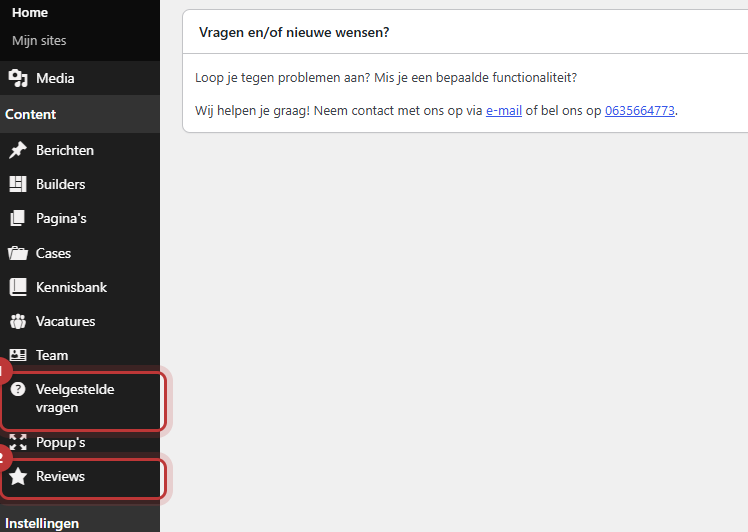
- After that, the module’s menu item will appear on the left in the menu.
- Modules: Frequently Asked Questions, Reviews, and for a webshop Tiered Discounts.
- Pop-ups, builders, and messages are always available.
What is a module?
A module is an additional component of your website with its own place in the management area. For example, a collection of frequently asked questions that you display on multiple pages, or customer reviews. Not every website needs them. That’s why they are off by default, and you turn them on when you want to use them.
Step 1: Go to General Options and choose the module
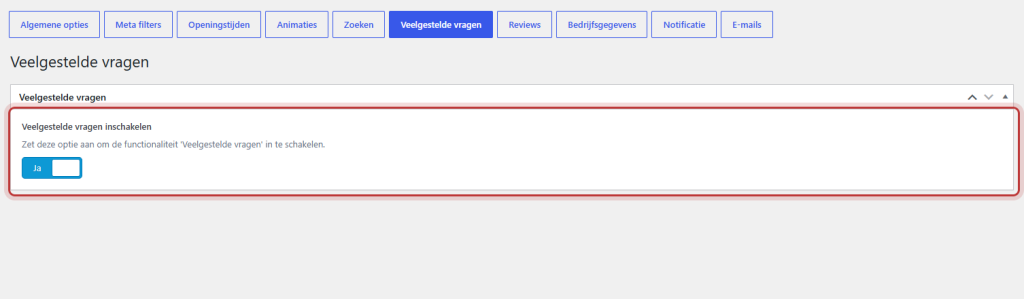
Click on General Options in the left menu. At the top, you will see buttons for all components, and the same components are also in the submenu. Each module has its own button, such as Frequently Asked Questions or Reviews. Click on the module you want to enable.
Nog geen website op leflite?
Wij bouwen hem samen met jou. Daarna pas je alles zelf aan, precies zoals in dit artikel.
- Online binnen een week
- Hosting, SSL en back-ups inbegrepen
- Vanaf €49,95 per maand

Step 2: Turn on the module
On the module page, there is one switch, for example Enable Frequently Asked Questions with the explanation “Turn this option on to enable the ‘Frequently Asked Questions’ functionality.” Turn it on and click on Update.
Step 3: The new menu item
After saving, the module will appear on the left in the menu. Refresh the page if you don’t see it yet. From now on, you can add content to it. In Frequently Asked Questions, a new block will also appear in the editor: Highlight Frequently Asked Questions.
Good to know: if you turn a module off later, the menu item and the block will disappear, but your questions or reviews will not be deleted. If you turn the module back on, they will still be there.
What modules are available?
Frequently Asked Questions
All your questions and answers in one place, divided into categories. With the block Highlight Frequently Asked Questions, you can display them as expandable blocks on every page. See add frequently asked questions.
Reviews
Customer ratings with name, stars, and text. You can display them as cards or in a slider, and your average score can automatically appear in text. See add customer reviews.
Tiered Discounts (webshop)
Only if your website is a webshop with WooCommerce. This allows you to give discounts for larger quantities. After turning it on and saving, the menu item Tier Groups will appear under General Options. See set up tiered discounts.
Always on: pop-ups, builders, and messages
A few components do not need to be turned on. They are always in the menu:
- Pop-ups: windows that open when a visitor clicks on a button or link. See create a pop-up.
- Builders: sections that you use on multiple pages (patterns). See what builders and patterns are.
- Messages: your news or blog. See write a blog post.
All articles about modules and messages
- How do I add frequently asked questions?
- How do I display frequently asked questions on a page?
- How do I add customer reviews to my website?
- How do I display reviews and my average score on my website?
- How do I create a pop-up?
- How do I write and publish a blog post?
- How do I set up the overview of my messages?
Share this article
Robert Oosterloo
Robert Oosterloo is eigenaar en UX/UI-designer van Lef Creative in Kollum. Hij ontwerpt websites, webshops en software voor ondernemers in Noord-Nederland.
Read also
Automatically display posts or pages
Placing a quote
Display categories as buttons or cards






Want a website like this?
Here you can read how easy it is to maintain a leflite site yourself. Want one too? We will think along with you, no strings attached.
Prefer direct contact? Call Robert at 06 35 66 47 73 or send a WhatsApp.