
Your webshop runs on WooCommerce, the most popular webshop plugin for WordPress. leflite builds a significant layer on top: product cards in your own style, a sliding shopping cart, smooth checkout, delivery times, volume discounts, VAT shifting, a cancellation button, and a quick product filter. In this article, you will see what’s included and where to set it up.
In short
- WooCommerce manages products, orders, payments, and shipping. leflite manages how it looks and adds extra features.
- Almost everything from leflite can be found under General options → Webshop and General options → Delivery time.
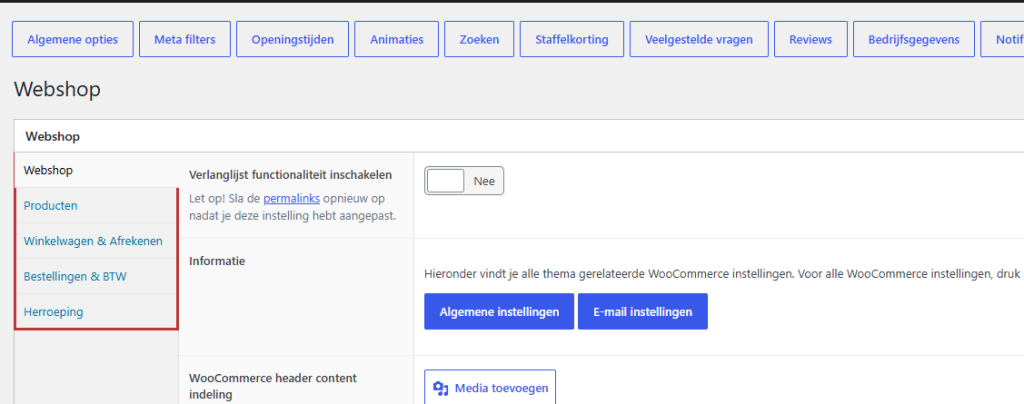
- The Webshop page has five tabs: Webshop, Products, Shopping cart & Checkout, Orders & VAT, and Cancellation.
- You can place products on a regular page using the block Highlight Products.
WooCommerce and leflite: who does what?
WooCommerce is the engine of your webshop. There you manage your products, orders, customers, payment methods, and shipping zones. You can find those settings in the menu WooCommerce and Products.
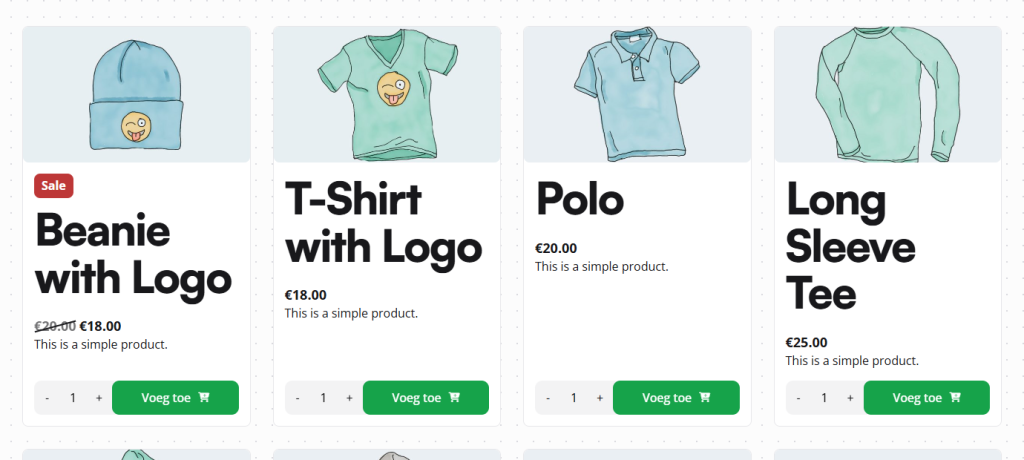
leflite takes care of the front end and adds extras that WooCommerce itself does not have. Think of the layout of the product cards, the sidecart (the sliding shopping cart), a distraction-free checkout page, and the VAT display under the price.
Where can you find the settings?
Go to General options in the admin panel. If your site has WooCommerce, you will see two extra pages there: Webshop and Delivery time. Without WooCommerce, they won’t be there.
The tabs on the Webshop page
- Webshop: the top of the shop page, the default sorting, quick category links, the wishlist, and a fixed builder under each product.
- Products: how product cards and product pages look, with labels, photo display, and what you hide.
- Shopping cart & Checkout: the sidecart, No Distraction, colors of the checkout, and hiding shipping methods with free shipping.
- Orders & VAT: the notification after an order, extra shipping information, VAT under the price, and VAT shifting.
- Cancellation: the legal cancellation button.
At the top of the Webshop tab, there are two buttons to the settings of WooCommerce itself: General settings and Email settings.
Nog geen website op leflite?
Wij bouwen hem samen met jou. Daarna pas je alles zelf aan, precies zoals in dit artikel.
- Online binnen een week
- Hosting, SSL en back-ups inbegrepen
- Vanaf €49,95 per maand

Show products
On the shop page and category pages, WooCommerce automatically displays your products. Do you want to show products on a regular page, like your homepage? Then use the block Highlight Products in the category Webshop blocks. You can choose new products, offers, or your own selection, as a grid or as a slider. See highlighting products on a page.
You can set how a product card looks (photo, labels, order directly) on the tab Products. Read setting product cards.
Shop and category pages
Above your products, you can display a header with an image, breadcrumb, and intro, as well as buttons to subcategories. Below a category, you can place text or complete sections, for example, for SEO. The filter is located on the side. This is about adjusting the top of the shop page, category links and category text, and setting the filter.
Shopping cart and checkout
When a visitor adds something, the sidecart opens on the right side. After that, the shopping cart and checkout follow. With No Distraction, the menu and footer disappear on those pages, allowing your customer to focus on the order. Read adjusting the sidecart, smooth checkout with No Distraction, and hiding shipping methods with free shipping.
VAT and cancellation
Do you also sell to businesses? Then you can display the price excluding and including VAT and shift the VAT for business customers with a valid VAT number. See displaying and shifting VAT.
Since June 19, 2026, a webshop must provide consumers with a button to undo an online purchase. leflite has built that cancellation button. Read how the cancellation button works.
Extras: volume discount, wishlist, and delivery time
- Volume discount: discount for larger quantities, per group of products or per product. See setting volume discounts.
- Wishlist: logged-in customers can save products for later. See enabling the wishlist.
- Delivery time: a bar showing the delivery time for each product. See displaying a delivery time.
In Menus, you will also find three extra menu items for your webshop: Shopping cart item, Account item, and, if the wishlist is enabled, Wishlist item.
Note: WooCommerce settings such as payment methods, shipping costs, and VAT rates directly affect what your customer pays. If you have doubts about a change, please ask us first.
Prefer that we do it?
Do you want a new webshop or a significant expansion? Check out having a webshop made. For updates, checks, and help with your existing shop, there is WordPress maintenance; maintenance for a webshop costs €600 per year.
All articles about the webshop
- How do I highlight products on a page?
- How do I display a delivery time for my products?
- How do I set up tiered pricing?
- How do I configure how products are displayed in the overview?
- How do I customize the top of the shop page?
- How do I add quick category links and text on a category page?
- How do I add extra sections below a product page?
- How do I customize the side cart?
- How do I set up the shopping cart and checkout (No Distraction)?
- How do I hide other shipping methods with free shipping?
- How do I display prices incl. or excl. VAT and set up VAT shifting?
- How does the cancellation button work in my webshop?
- How do I enable a wishlist in my webshop?
- How do I set the filter on the shop page?
Share this article

Robert Oosterloo
Robert Oosterloo is eigenaar en UX/UI-designer van Lef Creative in Kollum. Hij ontwerpt websites, webshops en software voor ondernemers in Noord-Nederland.
Read also
Display categories as buttons or cards
How do I enable a wishlist in my webshop?
How do I customize the top of the shop page (header and USPs)?






Want a website like this?
Here you can read how easy it is to maintain a leflite site yourself. Want one too? We will think along with you, no strings attached.
Prefer direct contact? Call Robert at 06 35 66 47 73 or send a WhatsApp.